
Introduzzjoni
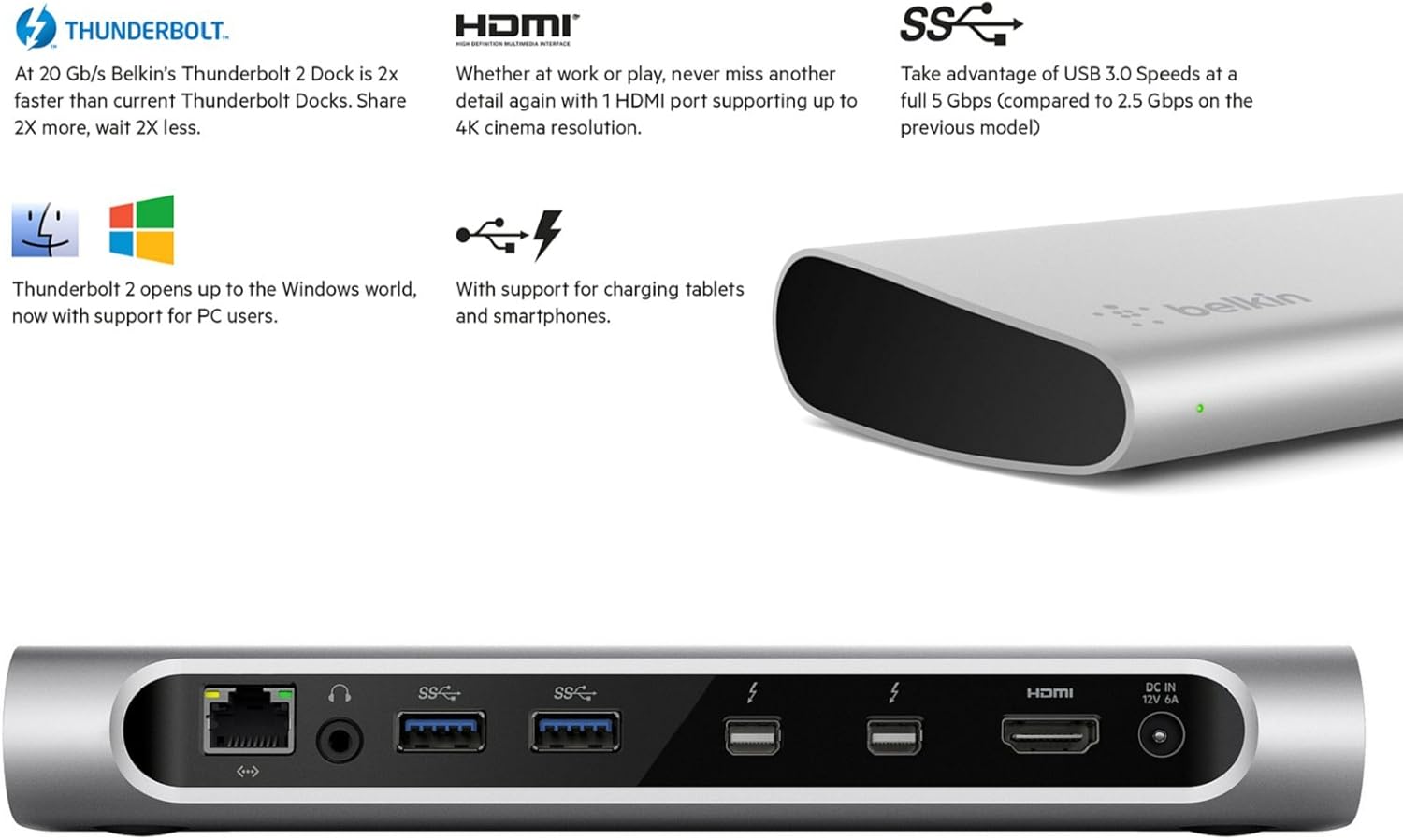
The Belkin Thunderbolt 2 Express HD Docking Station is designed to expand the connectivity of your Thunderbolt-enabled computer, such as a MacBook or compatible PC. It allows you to connect multiple peripherals, including dual displays, external hard drives, network cables, and audio devices, through a single Thunderbolt cable connection to your computer. This docking station enhances your workstation by providing a wide array of ports and supporting high-resolution displays, including 4K.

The Belkin Thunderbolt 2 Express HD Docking Station features a sleek, silver brushed aluminum design.
Setup Istruzzjonijiet
Follow these steps to set up your Belkin Thunderbolt 2 Express HD Docking Station:
- Iftaħ id-Docking Station mill-pakkett: Carefully remove the docking station and all accessories from its packaging. Ensure all components are present, including the docking station, power adapter, and Thunderbolt cable.
- Qabbad l-Enerġija: Connect the included power adapter to the 'DC IN 12V 6A' port on the rear of the docking station, then plug the adapter into a power outlet. The power indicator light on the front of the docking station should illuminate.
- Qabbad mal-Kompjuter: Use the provided Thunderbolt cable to connect one of the Thunderbolt ports on the docking station to a Thunderbolt port on your computer.
- Ikkonnettja l-Periferali: Connect your desired peripherals to the appropriate ports on the docking station. This may include:
- Wirjiet: Connect your monitor(s) to the HDMI port or one of the Thunderbolt ports (using appropriate adapters if necessary for DisplayPort, DVI, or VGA). The docking station supports dual displays and 4K resolution via the HDMI port.
- Apparat USB: Connect USB 3.0 devices (e.g., external hard drives, keyboards, mice) to the available USB 3.0 ports. There is one port on the front and three on the rear.
- Ethernet: Qabbad kejbil Ethernet mal-port Gigabit Ethernet għal aċċess għan-netwerk bil-fili.
- Awdjo: Connect headphones, speakers, or a microphone to the front audio input/output ports.
- Installazzjoni tas-sewwieq (jekk meħtieġ): For most modern operating systems (macOS, Windows), drivers should install automatically. If prompted, follow the on-screen instructions to complete any necessary driver installations.

Dettaljati view of the docking station's front and rear panels, highlighting the USB 3.0, audio, Gigabit Ethernet, Thunderbolt 2, HDMI, and power input ports.

A close-up diagram labeling each port on the docking station, including 1x Gigabit Ethernet, 1x Audio Out, 2x additional USB 3.0 Ports, 2x Thunderbolt 2 Ports, 1x HDMI Port (4K Resolution), and 1x AC/DC Power Input.
Istruzzjonijiet Operattivi
Once set up, the docking station operates seamlessly with your computer. Here are some key operational aspects:
- Rikonoxximent Awtomatiku: Your computer should automatically recognize all connected peripherals through the docking station.
- Konfigurazzjoni tad-Displej Doppju: To configure dual displays, access your computer's display settings (e.g., System Preferences > Displays on macOS, or Display Settings on Windows). You can extend or mirror your desktop across the connected monitors.
- Appoġġ għar-Riżoluzzjoni 4K: The HDMI port supports 4K cinema resolution. Ensure your monitor and HDMI cable are also 4K compatible to achieve this resolution.
- USB 3.0 Speeds: The USB 3.0 ports provide data transfer speeds up to 5 Gbps, ideal for fast external storage and other high-bandwidth USB devices.
- Iċċarġjar tal-Apparat: The USB 3.0 ports can also be used to charge tablets and smartphones.
- Hot-Plugging: Most devices can be connected or disconnected from the docking station while your computer is running, though it is generally recommended to safely eject storage devices before disconnecting.
Eżample of a complete workstation setup utilizing the docking station to connect a laptop to external monitors, speakers, and various peripherals.
Manutenzjoni
Biex tiżgura l-lonġevità u l-prestazzjoni ottimali tad-docking station tiegħek, segwi dawn il-linji gwida sempliċi ta' manutenzjoni:
- Tindif: Use a soft, dry, lint-free cloth to clean the exterior of the docking station. Avoid using abrasive cleaners, solvents, or aerosol sprays, which can damage the finish or internal components.
- Ventilazzjoni: Ensure the docking station is placed in a well-ventilated area. Do not block any ventilation openings.
- Kundizzjonijiet Ambjentali: Avoid exposing the docking station to extreme temperatures, humidity, or direct sunlight. Keep it away from liquids.
- Ġestjoni tal-Kejbil: Organize cables to prevent tangles and strain on the ports. This helps prevent accidental disconnections and damage.
Issolvi l-problemi
If you encounter issues with your Belkin Thunderbolt 2 Express HD Docking Station, try the following troubleshooting steps:
- Ebda Qawwa:
- Ensure the power adapter is securely connected to both the docking station and a working power outlet.
- Check if the power indicator light on the docking station is on.
- Apparati Mhux Rikonoxxuti:
- Verify that the Thunderbolt cable is firmly connected between the docking station and your computer.
- Ensure the peripheral device (e.g., USB drive, monitor) is properly connected to the docking station.
- Try disconnecting and reconnecting the problematic device.
- Ibda mill-ġdid il-kompjuter tiegħek.
- Check your computer's operating system for any driver updates for Thunderbolt or USB devices.
- Display Issues (No Signal, Incorrect Resolution):
- Confirm the monitor is powered on and set to the correct input source.
- Ensure the HDMI or Thunderbolt display cable is securely connected.
- Test the monitor by connecting it directly to your computer (if possible) to rule out monitor issues.
- Adjust display settings in your computer's operating system.
- Problemi ta' Konnettività tan-Netwerk:
- Iċċekkja l-konnessjoni tal-kejbil Ethernet kemm mad-docking station kif ukoll mar-router/modem tiegħek.
- Verify that your network router/modem is functioning correctly.
If these steps do not resolve the issue, please refer to the Belkin support websit għal aktar għajnuna.
Speċifikazzjonijiet
| Karatteristika | Speċifikazzjoni |
|---|---|
| Numru tal-Mudell | F4U085VF |
| Dimensjonijiet (L x W x H) | 20.8 x 8.84 x 2.82 ċm |
| Piż | 490 g |
| Interface tal-Ħardwer | Thunderbolt |
| Apparati Kompatibbli | Thunderbolt-enabled Apple MacBooks and PCs |
| Portijiet Thunderbolt | 2 (Thunderbolt 2) |
| Portijiet USB | 4 (USB 3.0, 1 front, 3 rear) |
| Portijiet HDMI | 1 (Supports up to 4K resolution) |
| Port Ethernet | 1 (Gigabit Ethernet) |
| Portijiet Awdjo | 1x Audio In, 1x Audio Out (front) |
| Input tal-Enerġija | DC 12V 6A |
| Veloċità tat-Trasferiment tad-Data | Up to 20 Gbps (Thunderbolt 2) |
Garanzija u Appoġġ
Belkin products are designed for reliability and performance. This product comes with a limited warranty. For detailed warranty information, including terms and conditions, please refer to the warranty card included with your product or visit the official Belkin websit.
For technical support, driver downloads, or frequently asked questions, please visit the Belkin support page:
When contacting support, please have your product model number (F4U085VF) and purchase information ready.