
Western Digital FBA_WDBSLA0010HNC-N
Western Digital WD Performance 1TB 7200 RPM SATA 6.0Gb/s 3.5" Desktop Internal Hard Drive
Model: FBA_WDBSLA0010HNC-N
Introduzzjoni
This manual provides essential information for the installation, operation, maintenance, and troubleshooting of your Western Digital WD Performance 1TB 7200 RPM SATA 6.0Gb/s 3.5" Desktop Internal Hard Drive. Please read this manual thoroughly before proceeding with installation or use to ensure proper functionality and data integrity.
Informazzjoni dwar is-Sigurtà
Observe the following safety precautions to prevent damage to the hard drive or your computer system:
- Protezzjoni minn Skariku Elettrostatiku (ESD): Always wear an anti-static wrist strap or frequently touch a grounded metal object (like the computer chassis) before handling the hard drive to discharge static electricity.
- Skonnettjar tal-Enerġija: Ensure your computer is completely powered off and unplugged from the wall outlet before opening the case or installing/removing any components.
- Immaniġġja b'Kura: Hard drives are delicate. Avoid dropping, jarring, or exposing the drive to excessive vibration. Hold the drive by its edges, not by the circuit board or connector pins.
- Ventilazzjoni: Ensure adequate airflow around the hard drive within the computer case to prevent overheating.
Kontenut tal-Pakkett
Iċċekkja li l-pakkett tiegħek fih l-oġġett li ġej:
- Western Digital WD Performance 1TB 7200 RPM SATA 6.0Gb/s 3.5" Desktop Internal Hard Drive unit.
Note: SATA data cables, power cables, and mounting screws are typically not included with bare hard drives and must be purchased separately or sourced from your computer's existing components.
Setup u Installazzjoni
Follow these steps to install your internal hard drive:
- Preparazzjoni:
- Back up any critical data from your existing drives before beginning.
- Power down your computer completely and unplug the power cord from the wall outlet.
- Iftaħ il-kaxxa tal-kompjuter tiegħek skont l-istruzzjonijiet tal-manifattur.
- Mounting the Hard Drive:
- Locate an available 3.5-inch drive bay inside your computer case.
- Slide the hard drive into the bay until the screw holes align.
- Secure the drive using four mounting screws (two on each side) to prevent vibration and ensure proper grounding.
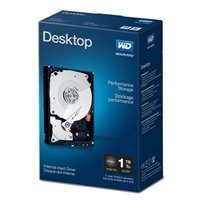
Image: Western Digital 3.5 inch internal hard drive. This image shows the top view of the hard drive, highlighting its form factor and typical appearance before installation.
- Kejbils ta 'Konnessjoni:
- Connect one end of a SATA data cable to the smaller port on the back of the hard drive. Connect the other end to an available SATA port on your computer's motherboard.
- Connect a SATA power cable from your computer's power supply unit (PSU) to the larger port on the back of the hard drive.
- Konfigurazzjoni Inizjali tas-Softwer:
- Close your computer case, plug in the power cord, and power on your computer.
- Upon booting, access your operating system's Disk Management utility (e.g., Windows Disk Management, macOS Disk Utility, or Linux `fdisk`/`GParted`).
- Locate the newly installed hard drive. It may appear as 'unallocated space'.
- Initialize the disk (if prompted), create one or more partitions, and format them with a suitable file sistema (eż., NTFS għal Windows, HFS+ jew APFS għal macOS, Ext4 għal Linux).
- Once formatted, the drive will be ready for use.
Tħaddim tal-Hard Drive
Once installed and formatted, your Western Digital hard drive functions as a standard storage device. You can use it to store operating systems, applications, documents, media files, and other data. Data transfer speeds will depend on your system's SATA controller and overall system performance.
Manutenzjoni
To ensure the longevity and reliability of your hard drive and the safety of your data:
- Backup Regolari tad-Data: Periodically back up critical data to another storage device or cloud service. No storage device is infallible.
- Monitor SMART Status: Utilize disk utility software to monitor the drive's Self-Monitoring, Analysis, and Reporting Technology (SMART) status. This can provide early warnings of potential drive failures.
- Maintain System Cooling: Ensure your computer's cooling system is functioning correctly to prevent the hard drive from operating at excessively high temperatures.
- Deframmentazzjoni (għall-HDDs): For optimal performance on Windows systems using NTFS, consider defragmenting the drive periodically. Modern operating systems often handle this automatically.
Issolvi l-problemi
Jekk tiltaqa' ma' problemi bil-hard drive tiegħek, ikkunsidra dan li ġej:
- Sewqan Mhux Rilevat:
- Verify that both the SATA data and power cables are securely connected to the drive and the motherboard/PSU.
- Check your computer's BIOS/UEFI settings to ensure the SATA port is enabled and the drive is recognized.
- Ipprova qabbad id-drajv ma' port SATA differenti jew uża kejbils differenti.
- Prestazzjoni bil-mod:
- Check for excessive background processes or other system bottlenecks.
- Kun żgur li d-drajv mhux kważi mimli.
- Run a disk defragmenter (if applicable for your OS and file sistema).
- Check the drive's SMART status for potential issues.
- Unusual Noises (Clicking, Grinding):
- These sounds can indicate a mechanical failure. Immediately back up any critical data if possible.
- Discontinue use and consider professional data recovery services if data is critical.
Speċifikazzjonijiet
| Karatteristika | Speċifikazzjoni |
|---|---|
| Brand | Diġitali tal-Punent |
| Numru tal-Mudell | FBA_WDBSLA0010HNC-N |
| Kapaċità tal-Ħażna Diġitali | 1 TB |
| Interface Hard Disk | Serial ATA |
| Teknoloġija tal-Konnettività | SATA |
| Fattur tal-Formola tad-Disk Ribd | 3.5 Pulzier |
| Deskrizzjoni Hard Disk | Hard Disk Mekkanika |
| Apparati Kompatibbli | Desktop |
| Tip ta' Installazzjoni | Hard Drive Intern |
| Veloċità Rotazzjonali tal-Hard Disk | 7200 RPM |
| Rata ta' Trasferiment tad-Data | 6000 Megabytes Per Second (SATA 6.0 Gb/s) |
| Fattur tal-Formola | 3.5-il pulzier |
| UPC | 718037822501 |
Informazzjoni dwar Garanzija
Western Digital products are covered by a limited warranty. The specific terms and duration of your warranty may vary by region and product. For detailed warranty information, including terms, conditions, and how to make a claim, please visit the official Western Digital websit.
Optional data recovery plans may be available for purchase separately to provide additional protection for your data. These plans are not part of the standard product warranty and offer specialized services in case of data loss.
Appoġġ
For technical assistance, product registration, or to access additional resources, please visit the official Western Digital support websit:
You may find FAQs, driver downloads, and contact information for customer service on their support portal.
Ask a question about this manual
Ask about setup, troubleshooting, compatibility, parts, safety, or missing instructions. Manuals+ will review the question and use this page’s manual context to help answer it.