
ASUS T100TA
Manwal tal-Utent għal Laptop Tablet ASUS T100 ta' 10 Pulzieri b'Dock
Model: T100TA
1. Prodott Aktarview
The ASUS T100 is a versatile 10-inch device designed to function as both a tablet and a laptop. It features a detachable keyboard dock, allowing for flexible use in various scenarios. This manual provides essential information for setting up, operating, maintaining, and troubleshooting your device.

Figure 1: ASUS T100 Tablet and Detachable Keyboard Dock
Karatteristiċi ewlenin:
- Sistema Operattiva: Full Version Windows 8.1 (upgradeable to Windows 10).
- Proċessur: Intel Quad-Core Z3775 1.46GHz Processor.
- Memorja: 2GB RAM.
- Ħażna: 64GB SSD in the tablet.
- Konnettività: Dual-band 802.11N WiFi, Bluetooth 4.0.
- Portijiet: MicroSDXC card reader, MicroHDMI, microUSB ports, USB 3.0 port on the keyboard dock.
- Software: Includes 1 year of Microsoft Office 365 Personal.
2. Twaqqif u l-Ewwel Użu
2.1 Tneħħija tal-kaxxa u l-Kontenut
Carefully unpack your ASUS T100. Ensure all components are present:
- ASUS T100 10-Inch Tablet
- Chiclet Keyboard Dock
- Adapter tal-Enerġija
- 1-Lithium Ion Battery (integrated)
2.2 Iċċarġjar tal-Apparat
Before initial use, fully charge your ASUS T100. Connect the power adapter to the microUSB port on the tablet and plug it into a power outlet. The charging indicator light will illuminate.
2.3 Attaching the Keyboard Dock
To transform your tablet into a laptop, align the tablet with the docking connector on the keyboard dock and gently press down until it clicks securely into place. Ensure the connection is firm.
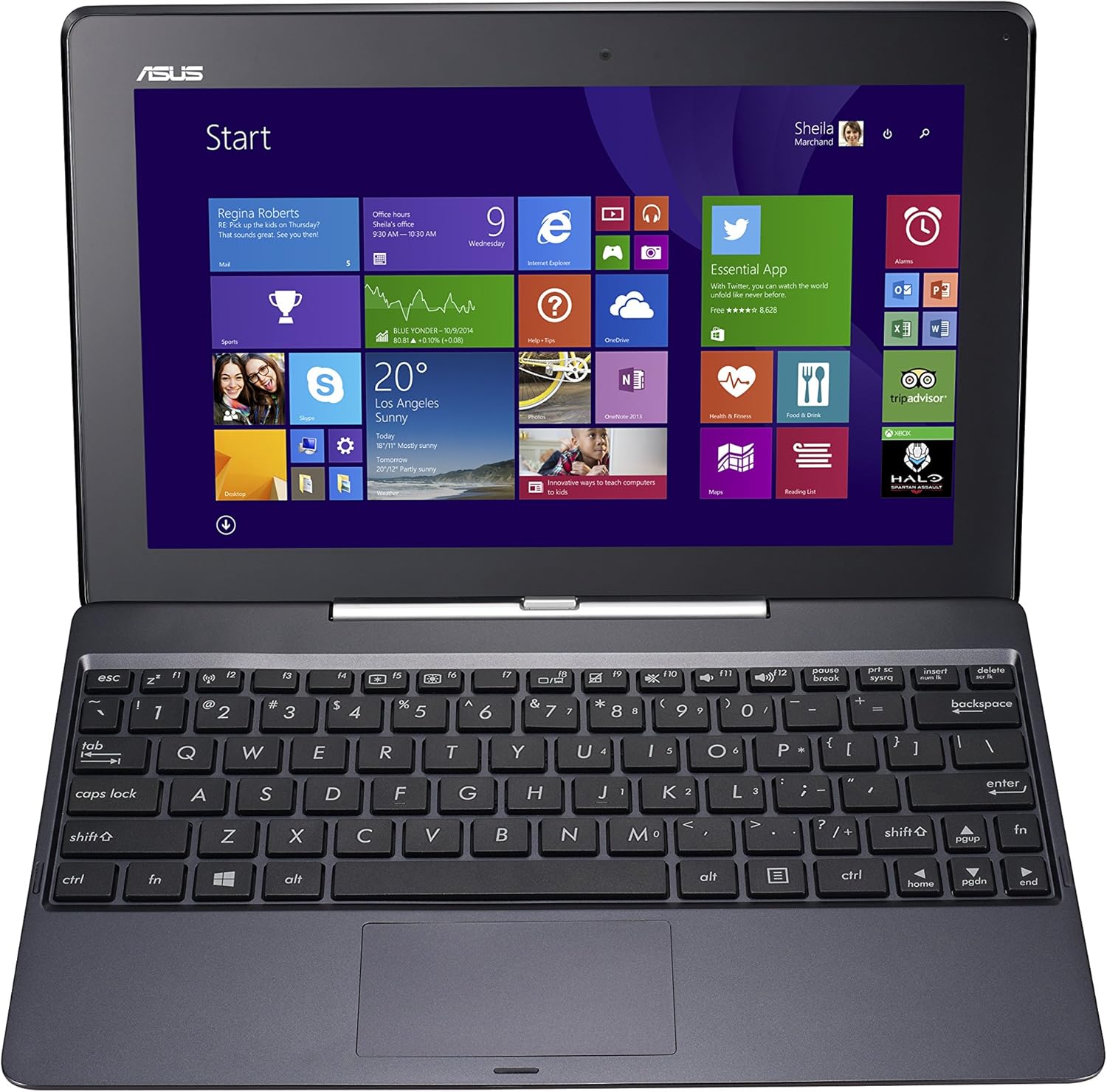
Figure 2: ASUS T100 Tablet Docked
2.4 L-Ewwel Tixgħil u s-Setup tal-Windows
Press and hold the power button located on the side of the tablet until the ASUS logo appears. Follow the on-screen instructions to complete the Windows 8.1 setup process, including language selection, network connection, and user account creation.
3. Operating Your ASUS T100
3.1 Tablet Mode
In tablet mode, interact with the device using the touchscreen. Swipe from the right edge to access charms, swipe from the left to switch between apps, and tap icons to open applications.
3.2 Laptop Mode
When docked, the keyboard and touchpad become active. Use the keyboard for typing and the touchpad for cursor control. The USB 3.0 port on the dock allows connection of external devices.

Figure 3: ASUS T100 Keyboard Dock
3.3 Konnettività
- Wi-Fi: Access network settings through the Windows operating system to connect to available Wi-Fi networks.
- Bluetooth: Pair Bluetooth devices like mice or headphones via the Windows Bluetooth settings.
- Wirjiet Esterni: Use the MicroHDMI port to connect to an external monitor or TV.
- Espansjoni tal-Ħażna: Insert a MicroSDXC card into the card reader for additional storage.

Figura 4: Ġenb View with USB 3.0 Port
4. Manutenzjoni
4.1 Tindif
Uża drapp artab u mingħajr suf biex tnaddaf l-iskrin u l-uċuħ esterni. Għal tbajja' persistenti, neħħi ftitampLaħlaħ id-drapp bl-ilma jew b'soluzzjoni għat-tindif tal-iskrin. Evita kimiċi ħarxa.
4.2 Kura tal-Batterija
To prolong battery life, avoid extreme temperatures. It is recommended to fully discharge and recharge the battery periodically. The device has an average battery life of 11 hours.
4.3 Aġġornamenti tas-Software
Regularly check for and install Windows updates to ensure optimal performance and security. Your device runs Windows 8.1 and is eligible for a free upgrade to Windows 10, which can improve performance and address some issues.
5 Issolvi l-problemi
This section addresses common issues you might encounter with your ASUS T100.
5.1 Kwistjonijiet ta' Prestazzjoni
- Prestazzjoni bil-mod: Ensure you have sufficient free storage space. Close unnecessary applications running in the background. Consider upgrading to Windows 10, as users have reported significant performance improvements.
- Lagging: If experiencing lag, especially during multitasking, check for system updates. A fresh installation of Windows 10 has been noted to resolve many performance-related issues.
5.2 Docking Problems
- Tablet not seating correctly: Ensure the tablet is properly aligned with the docking connector. Apply gentle, even pressure until it clicks into place. If it feels loose after extended use, try re-docking.
- Keyboard/Touchpad not responding: Detach and re-attach the tablet to the dock. Ensure the connectors are clean and free of debris.
5.3 Kwistjonijiet ta' Iċċarġjar
- Iċċarġjar bil-mod: The device is known to charge slowly. Ensure you are using the provided 2.0 amp adapter. Charging overnight is typical for a full charge.
- Charging port difficulty: Some users find the charging port difficult to plug into. Try plugging the cable in at a very slight downward angle.
5.4 Touchscreen Inaccuracy
If the touchscreen is not always perfectly accurate for file operations or dragging items, consider using a Bluetooth mouse for more precise control, especially in laptop mode.
6. Speċifikazzjonijiet
| Karatteristika | Speċifikazzjoni |
|---|---|
| Daqs tal-Wiri tal-Iskrin Permanenti | 10.1 Pulzier |
| Riżoluzzjoni Massima tal-Iskrin | 1366 x 768 pixel |
| Proċessur | 1.46 GHz Intel Atom (Quad-Core Z3775) |
| RAM | 2 GB DDR3 |
| Hard Drive | 64 GB SSD (in Tablet) |
| Koproċessur tal-Grafika | Intel GMA HD (Integrated) |
| Tip bla fili | 802.11n |
| Numru ta 'USB 2.0 Ports | 1 |
| Numru ta 'USB 3.0 Ports | 1 (on Keyboard Dock) |
| Ħajja Medja tal-Batterija | 11 sigħat |
| Sistema Operattiva | Windows 8.1 |
| Piż tal-oġġett | 2.4 liri |
| Dimensjonijiet tal-Prodott | 6.7 x 10.4 x 0.93 pulzieri |
| Kulur | Aħmar |
| Wara WebCam Riżoluzzjoni | 1 MP |
7. Garanzija u Appoġġ
Għal informazzjoni dettaljata dwar il-garanzija u appoġġ tekniku, jekk jogħġbok irreferi għall-websajt uffiċjali tal-ASUS website or the documentation included with your purchase. Product registration may be required to activate your warranty.
Ċaħda Legali: Must be at least 18 & over to purchase.
Ask a question about this manual
Ask about setup, troubleshooting, compatibility, parts, safety, or missing instructions. Manuals+ will review the question and use this page’s manual context to help answer it.