
1. Introduzzjoni
This manual provides essential information for the safe and efficient operation of your InFocus IN2126a WXGA Network Projector. Please read this manual thoroughly before using the projector and retain it for future reference. The InFocus IN2126a is designed for versatile use in various environments, offering high brightness and network capabilities.
2. Informazzjoni dwar is-Sigurtà
Osserva l-prekawzjonijiet ta' sigurtà li ġejjin biex tevita ħsara lill-proġettur u tiżgura s-sigurtà tal-utent:
- Timblokkax il-fetħiet tal-ventilazzjoni. Kun żgur li jkun hemm fluss tal-arja adegwat madwar il-proġettazzjoni.
- Tħarisx direttament fil-lenti tal-proġettazzjoni meta tkun qed taħdem.amp mixgħul. Id-dawl qawwi jista’ jikkawża ħsara lill-għajnejn.
- Evita li tpoġġi l-proġettur fid-dawl tax-xemx dirett, ħdejn sorsi ta’ sħana, jew f’ambjenti b’umdità għolja jew trab eċċessiv.
- Use only the power cord supplied with the projector.
- Irreferi kull servizz lil persunal tas-servizz kwalifikat. Tippruvax tiftaħ jew issewwi l-proġettazzjoni int stess.
3. Prodott Aktarview
Familiarize yourself with the components and features of your InFocus IN2126a projector.
3.1 Komponenti tal-Proġettur
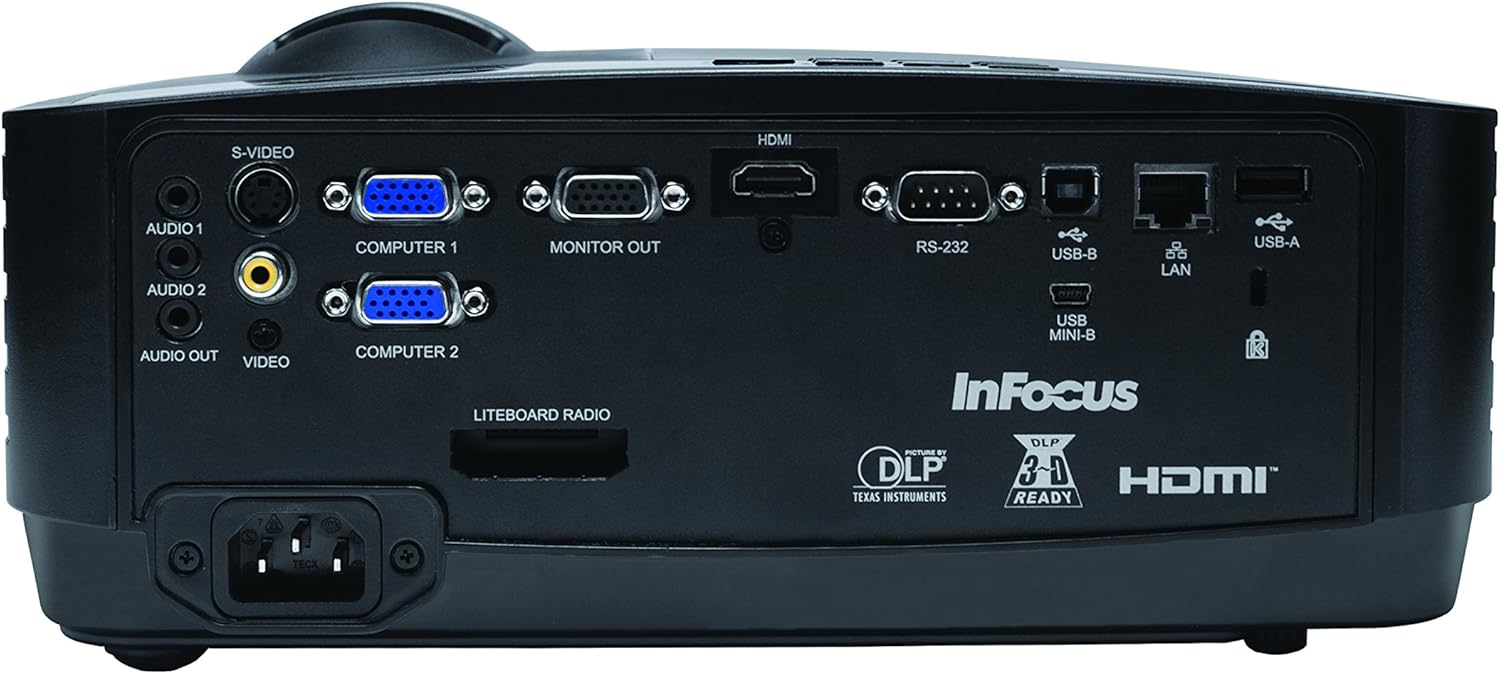
Figura 1: Naħa ta' quddiem view of the InFocus IN2126a projector, showing the lens and ventilation.

Figura 2: Ġenb view of the InFocus IN2126a projector, highlighting the ventilation grilles.
3.2 Konnessjonijiet tal-Panew ta' wara
The rear panel provides various input and output ports for connecting external devices.
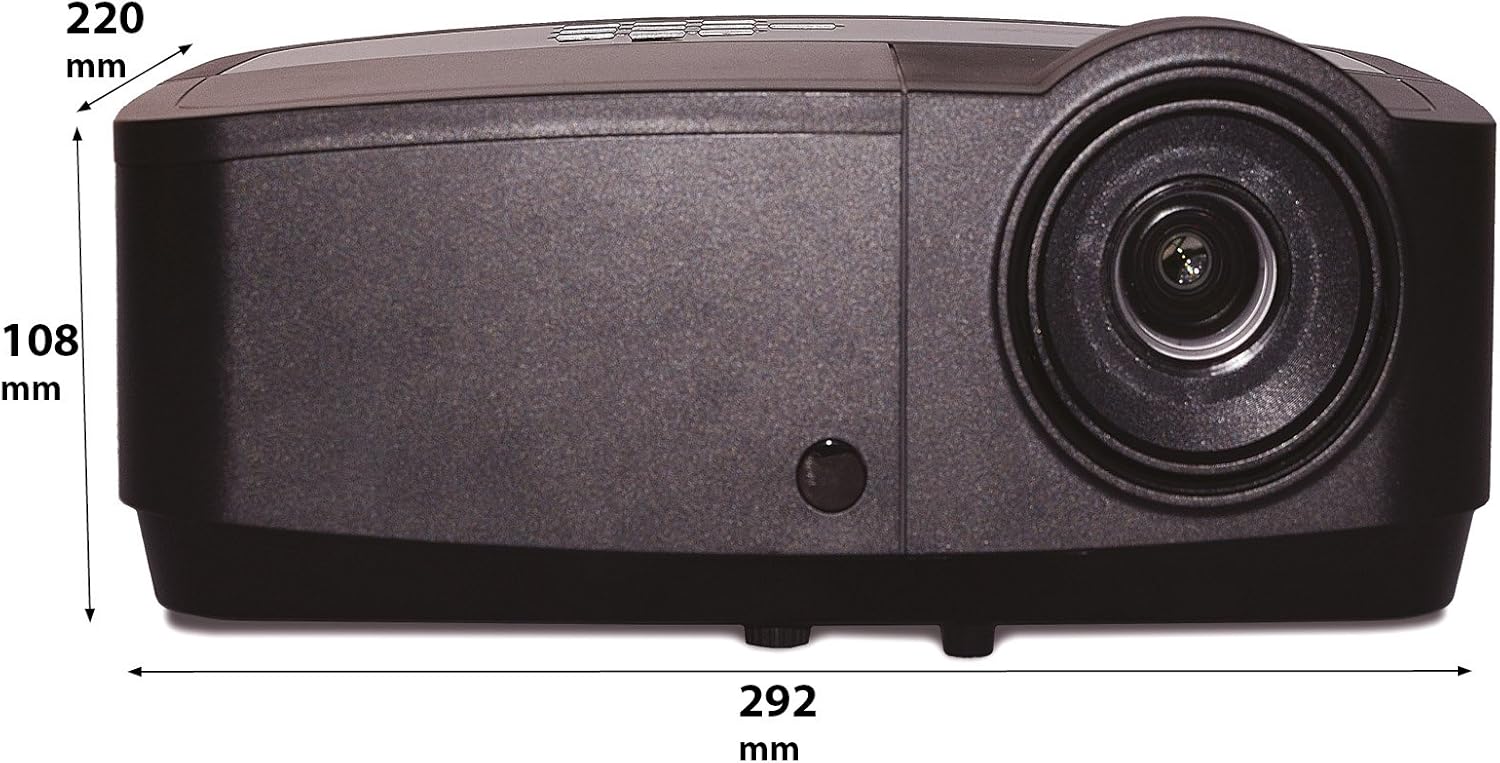
Figure 3: Rear panel of the InFocus IN2126a projector, displaying various connectivity ports including HDMI, VGA, USB, and LAN.
- HDMI: Għal input ta' vidjow u awdjo diġitali.
- COMPUTER 1 / COMPUTER 2 (VGA): For analog video input from computers.
- MONITOR OUT (VGA): For connecting an external monitor.
- USB-B / USB Mini-B: For service or specific USB functions.
- USB-A: For connecting USB devices, such as a wireless adapter.
- LAN (RJ45): Għall-konnettività tan-netwerk.
- RS-232: Għall-kontroll tas-serje.
- AUDIO 1 / AUDIO 2 (RCA): Għal input awdjo.
- ĦRUĠ AWDJO: Għall-konnessjoni ta' sistemi awdjo esterni.
- VIDEO (RCA): Għal input ta' vidjo kompost.
- S-VIDEO: For S-Video input.
- Daħla tal-Qawwa: Għall-konnessjoni tal-korda tal-enerġija.
3.3 Kontrolli tal-Panel ta' Fuq
The top panel features controls for basic projector functions and image adjustments.

Figure 4: Top panel of the InFocus IN2126a projector, showing the control buttons and focus/zoom rings.
- Buttuna tal-Qawwa: Ixgħel jew jitfi l-proġekter.
- Menu/Exit Button: Accesses or exits the on-screen display (OSD) menu.
- Buttuni tan-Navigazzjoni ('il fuq, 'l isfel, Xellug, Lemin): Jinnaviga fl-għażliet tal-menù.
- Daħħal Button: Jikkonferma l-għażliet fil-menù.
- Buttuna tas-Sors: Jagħżel sorsi ta' input.
- Blank Button: Temporarily blanks the screen.
- Buttuna awtomatika: Jaġġusta awtomatikament is-settings tal-immaġni.
- Ċirku tal-Fokus: Jaġġusta n-nitidezza tal-immaġni.
- Ċirku Zoom: Jaġġusta d-daqs tal-immaġini.
3.4 Dimensjonijiet
Understanding the physical dimensions is important for installation and placement.

Figure 5: Diagram illustrating the dimensions of the InFocus IN2126a projector (292mm length, 220mm width, 108mm height).
4. Setup
4.1 Pożizzjonament tal-Proġettur
Place the projector on a stable, flat surface or mount it securely. Ensure the projector is positioned at an appropriate distance from the screen to achieve the desired image size. Maintain sufficient space around the projector for proper ventilation.
4.2 Apparat li jgħaqqad
- Konnessjoni tal-Enerġija: Connect the power cord to the projector's power inlet and then to a grounded electrical outlet.
- Sors tal-vidjo:
- For digital sources (e.g., Blu-ray player, laptop), use an HDMI cable to connect to the HDMI port.
- For analog computer sources, use a VGA cable to connect to the COMPUTER 1 or COMPUTER 2 port.
- For other video sources, use the appropriate S-VIDEO or VIDEO (RCA) connections.
- Sors Awdjo: If your video source does not transmit audio via HDMI, connect audio cables to the AUDIO 1 or AUDIO 2 ports.
- Konnessjoni tan-Netwerk: For wired network access, connect an Ethernet cable to the LAN port.
- Konnettività Wireless: If using a compatible wireless adapter (sold separately), insert it into the USB-A port.
4.3 Tixgħel/Jitfi
- Biex Tixgħel: Press the Power button on the projector's top panel or the remote control. The power indicator light will illuminate.
- Biex Tifi: Press the Power button again. The projector will enter a cooling cycle before shutting down completely. Do not unplug the projector during the cooling cycle.
5. It-Tħaddim tal-Proġettur
5.1 Għażla tas-Sors
After powering on, the projector may automatically detect an active input source. If not, or to switch sources:
- Agħfas il- Sors buttuna fuq il-proġekter jew kontroll mill-bogħod.
- Use the navigation buttons to highlight the desired input source (e.g., HDMI, Computer 1, Video).
- Agħfas Daħħal biex tagħżel is-sors.
5.2 Aġġustament tal-Immaġni
- Fokus: Dawwar il- Iffoka ring on the projector lens until the image appears sharp and clear.
- Zoom: Dawwar il- Zoom ring on the projector lens to adjust the image size to fit your screen.
- Korrezzjoni Keystone: If the image appears trapezoidal, use the keystone correction feature in the OSD menu to square the image.
5.3 Menù tal-Wiri fuq l-Iskrin (OSD)
The OSD menu allows you to configure various projector settings.
- Agħfas il- Menu buttuna biex tiftaħ il-menù tal-OSD.
- Uża l- 'l fuq/' l isfel navigation buttons to select a menu category.
- Uża l- Xellug/Lemin navigation buttons to adjust settings or enter sub-menus.
- Agħfas Daħħal biex tikkonferma l-bidliet.
- Agħfas Ħruġ to close the OSD menu.
5.4 Konnettività bla fili
The IN2126a is wireless-ready. To enable wireless display, a compatible InFocus wireless adapter (sold separately) must be connected to the USB-A port. Refer to the wireless adapter's specific instructions for setup and connection procedures.
5.5 Funzjonalità 3D
The projector supports 3D content. To view 3D content, you will need a compatible 3D source, 3D glasses, and appropriate 3D content. Refer to the projector's OSD menu for 3D settings and ensure your source device is configured for 3D output.
6. Manutenzjoni
Manutenzjoni regolari tiżgura prestazzjoni ottimali u testendi l-ħajja tal-proġettazzjoni tiegħek.
6.1 Lamp Sostituzzjoni
Il-proġekter lamp has a limited lifespan (approximately 4000 hours). When the lamp indicator illuminates or the image brightness significantly decreases, the lamp needs replacement. Always use an authorized InFocus replacement lampIrreferi għall-manwal sħiħ tas-servizz għal aktar dettalji.amp replacement instructions or contact customer support.
6.2 Tindif tal-filtru
Dust accumulation on the air filter can impede airflow and cause overheating. Regularly clean the air filter to maintain proper ventilation. Turn off and unplug the projector before cleaning. Use a soft brush or vacuum cleaner to remove dust from the filter cover.
6.3 Tindif Ġenerali
- Proġettur Ċasing: Uża drapp ratba u mingħajr ħelu dampened with a mild, non-abrasive cleaner. Do not use harsh chemicals.
- Lenti: Use a lens cleaning cloth and specialized lens cleaning solution. Avoid touching the lens surface with your fingers.
7 Issolvi l-problemi
Jekk tiltaqa' ma' problemi bil-proġettur tiegħek, irreferi għall-problemi u s-soluzzjonijiet komuni li ġejjin:
| Problema | Kawża Possibbli | Soluzzjoni |
|---|---|---|
| L-ebda immaġni fuq l-iskrin | Sors ta' input mhux korrett magħżul; Konnessjoni tal-kejbil maħlula; Proġettur fil-modalità standby. | Verify input source; Check all cable connections; Press power button to wake from standby. |
| L-immaġni hija mċajpra | Il-fokus mhux aġġustat; Il-proġettazzjoni hija qrib/bogħod wisq mill-iskrin. | Adjust the focus ring; Reposition the projector and adjust zoom. |
| L-immaġni hija trapezojdali | Il-proġettur mhux perpendikolari mal-iskrin. | Uża l-korrezzjoni tat-trapezoidali fil-menù tal-OSD. |
| L-ebda awdjo | Audio cables not connected; Volume too low; Muted. | Check audio cable connections; Adjust volume; Unmute projector. |
| Il-proġettur jisħon iżżejjed u jintefa | Ventilazzjoni mblukkata; Filtru tal-arja maħmuġ. | Ensure clear airflow around projector; Clean the air filter. |
For more detailed troubleshooting, consult the complete user manual or contact InFocus customer support.
8. Speċifikazzjonijiet
Key technical specifications for the InFocus IN2126a WXGA Network Projector:
- Isem tal-Mudell: IN2126a
- Tip ta' wiri: DLP
- Riżoluzzjoni Nattiva: 1280 x 800 (WXGA)
- Luminożità: 3500 Lumens
- Proporzjon ta' Kuntrast: 15000:1
- Riproduzzjoni tal-Kulur: 1.07 Biljun Kulur (30-bit)
- Ħajja Operattiva tas-Sors tad-Dawl: 4000 Sigħat
- Teknoloġija tal-Konnettività: Wireless-ready, HDMI 1.4, VGA (x2), USB (Type-A, Mini-B, Type-B), LAN (RJ45), RS-232, Audio In (x2), Audio Out, Video (RCA), S-Video
- Karatteristiċi Speċjali: 3D-Ready, Network Projector
- Fattur tal-Formola: Portabbli
- Tip ta 'Immuntar: Immonta fuq il-mejda
- Piż tal-oġġett: 7.1 Liri
9. Garanzija u Appoġġ
For information regarding your product's warranty, please refer to the warranty card included with your purchase or visit the official InFocus website. For technical support, service, or to purchase accessories, please contact InFocus customer service through their official channels.