
1. Introduzzjoni
The Honeywell RET97E5D1005/U Wi-Fi Programmable Thermostat provides advanced control over your home's heating and cooling system. This device allows for remote access and management via smartphone or computer, offering convenience and energy efficiency. This manual provides essential information for installation, operation, and troubleshooting to ensure optimal performance of your thermostat.

Image: The Honeywell Wi-Fi Programmable Thermostat displayed on a wall, illustrating its integration into a comfortable home environment where a family is gathered.
2. Karatteristiċi ewlenin
- Wi-Fi Ippermettiet: Allows remote access and control via smartphone or computer.
- App għal Smartphone: Free app available for iPhone, iPad, and Android operating systems.
- Kompatibilità Universali: Designed to work with most heating and cooling systems.
- Skeda Programmabbli: Pre-programmed with an energy-saving schedule, configurable to meet various requirements.
- Teknoloġija ta 'Rispons Intelliġenti: Continuously learns to pre-heat or pre-cool your home to reach desired temperatures at programmed times.
- Bidla awtomatika: Automatically switches between heating and cooling modes as needed.
- Temperature Hold: Features permanent and temporary hold options.
- Aġġornamenti tas-Software: Automatically downloads software updates.
- Twissijiet: Provides notifications for high/low temperature and loss of network connection.
- Local Weather Display: View local weather information directly on the thermostat.
- Netwerk Sikur: Operates on a secure network for reliable communication.

Image: A man on a beach demonstrates the remote control capability of the Honeywell Wi-Fi Thermostat using a smartphone, highlighting its convenience from any location.
3. Gwida għall-Installazzjoni
3.1 Rekwiżiti tal-Wiring
Proper installation requires a common wire (C-wire) to provide continuous power to the thermostat, as the Wi-Fi radio requires constant power and cannot operate on batteries alone. If your existing thermostat wiring does not include a C-wire, you may need to run a new cable or use an add-a-wire accessory.
- Standard 2-Wire Systems (Heat-Only): For systems without a common terminal on the controller, a separate 24VAC transformer can be used. Connect the transformer's positive wire to Rc and the common wire to C on the thermostat's wall plate. Ensure the pre-installed jumper between R and Rc is removed if using a separate transformer.
- C-Wire Connection: Connect the C-wire from your furnace or HVAC system to the C terminal on the thermostat's wall plate.
3.2 Installazzjoni Fiżika
Mount the thermostat's wall plate to a suitable location on your wall, ensuring all wires are securely connected to their respective terminals. Once the wall plate is installed, carefully attach the thermostat body to the backing plate.
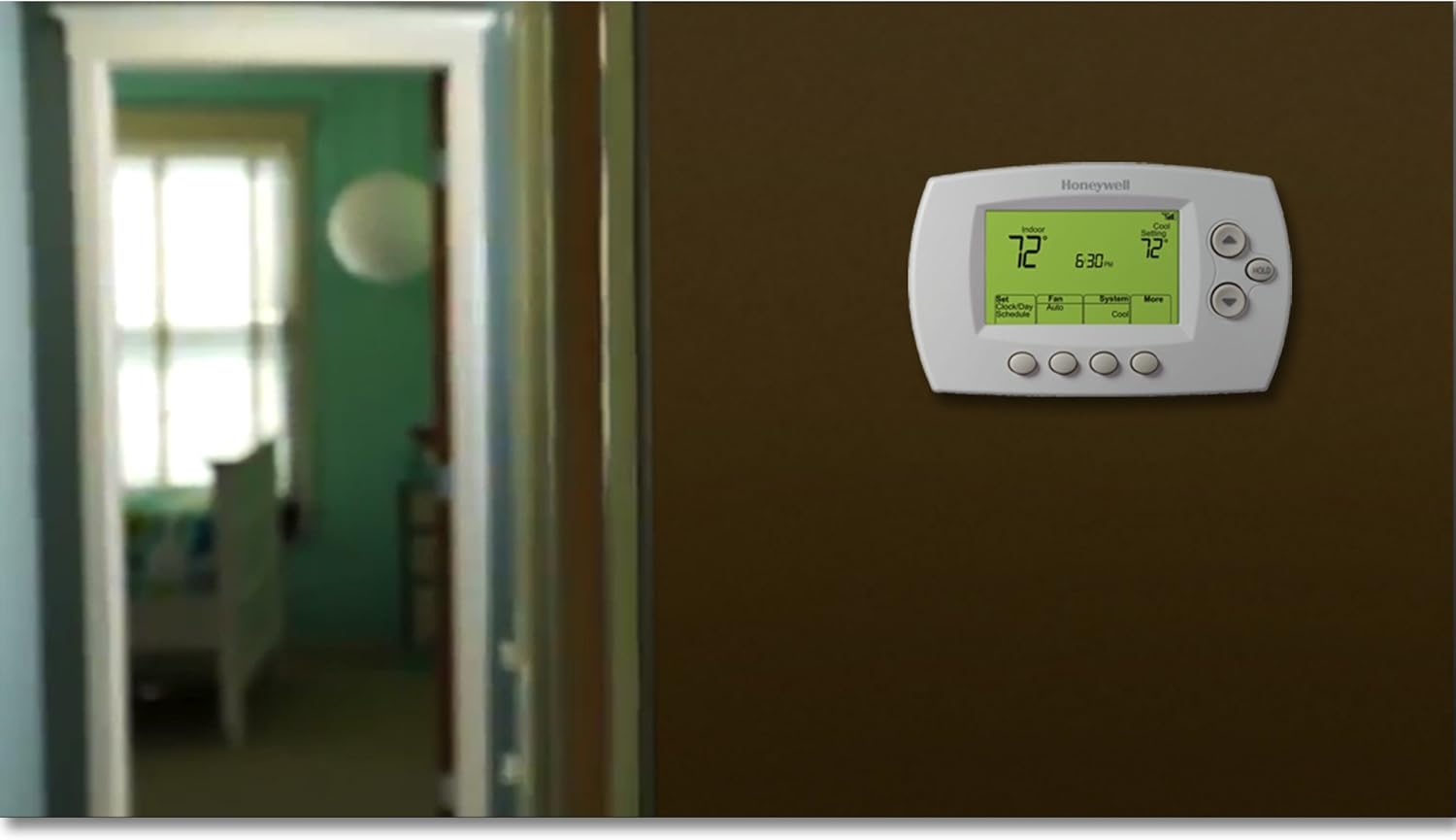
Image: The Honeywell Wi-Fi Programmable Thermostat is shown installed on a wall, ready for use in a typical home environment.
4. Wi-Fi Setup and Registration
4.1 Konnessjoni Inizjali tal-Wi-Fi
To complete the initial setup, you will need a device with Wi-Fi capabilities (e.g., laptop, smartphone, tablet) and a web browser. A compatible 802.11b/g/n wireless router is also required. The process involves connecting your device to the thermostat's temporary Wi-Fi signal, then linking the thermostat to your permanent home Wi-Fi network.
4.2 Troubleshooting Wi-Fi Connection (Error 200)
If you encounter an "ERROR,200" message on your device during the Wi-Fi setup process, this typically indicates an unsupported web browser. While you may be able to connect to the thermostat's temporary Wi-Fi signal, the linking process to your home network may fail. It is recommended to use a widely supported browser such as Google Chrome for the setup. Switching browsers often resolves this issue.
4.3 Thermostat Registration
After successfully connecting the thermostat to your home Wi-Fi, you must register it on the Honeywell Total Comfort Connect website to enable remote access. This involves creating an account (if you don't have one) and adding your thermostat as a new device.
- Locate the MAC ID and the related 4-digit code printed on the back of your thermostat unit.
- Enter these details into the "new device" section on the Honeywell Total Comfort Connect websit.
4.4 Troubleshooting Registration
If registration is rejected without a specific error code, or if there's a generic statement about the thermostat's Wi-Fi connection being down (even if the Wi-Fi icon shows a strong signal), try the following:
- Gently pull the thermostat body off its backing plate for approximately 30 seconds.
- Re-install the thermostat body onto the backing plate. This brief power cycle can refresh the connection without losing settings.
- Return to the Honeywell Total Comfort Connect interface and re-enter the MAC ID and 4-digit code to attempt registration again.

Immaġni: Dettaljata view of the Honeywell thermostat control app interface on an iPad, demonstrating the intuitive controls for system mode, temperature, and fan settings.
5. Istruzzjonijiet Operattivi
5.1 Kontrolli Bażiċi
The thermostat features physical buttons for direct control:
- Modalità tas-Sistema: Switch between Cool, Heat, and Off.
- Kontroll tal-fann: Select Off or Auto.
- Aġġustament tat-temperatura: Uża l-vleġeġ 'il fuq/'l isfel biex tissettja t-temperatura mixtieqa.
- Funzjoni ta' Żomm: Activate permanent or temporary temperature holds.
5.2 Skeda ta' Programmazzjoni
The thermostat comes with a pre-programmed energy-saving schedule. You can customize this schedule to fit your specific needs and preferences directly on the unit or through the smartphone app/web interface.
5.3 Remote Control via App/Web
Once registered, you can remotely view and control your home's temperature from anywhere using the free smartphone app or the Honeywell Total Comfort Connect website. This allows you to adjust settings, change schedules, and monitor your system's status.
5.4 Smart Response Technology
This feature allows the thermostat to learn how long it takes your heating and cooling system to reach programmed temperatures. It then automatically adjusts the start time to ensure your home is comfortable at your scheduled times.
5.5 Twissijiet u Notifiki
The thermostat can send alerts to your connected devices for events such as high/low temperature deviations or loss of connection to your Wi-Fi network, keeping you informed about your home's climate status.

Image: A smartphone screen shows the Honeywell thermostat app controlling the temperature of a snowy cabin, demonstrating the convenience of remote climate management in various conditions.
6. Manutenzjoni
The Honeywell RET97E5D1005/U thermostat requires minimal maintenance. Keep the display clean with a soft, dry cloth. Avoid using abrasive cleaners or solvents. The real-time clock feature ensures the time is maintained during power failures and automatically updates for daylight saving time (if enabled).
7 Issolvi l-problemi
7.1 Kwistjonijiet ta' Konnessjoni tal-Wi-Fi
- "ERROR,200" during Wi-Fi Setup: This error indicates an unsupported web browser. Use Google Chrome for the Wi-Fi setup process.
- Thermostat Not Connecting to Home Wi-Fi: Ensure your router is compatible (802.11b/g/n). Verify your Wi-Fi password. Try power cycling your router and the thermostat.
7.2 Registration Problems
- Registration Rejected: If the Honeywell Total Comfort Connect website rejects registration, even with correct MAC ID and 4-digit code, try briefly removing the thermostat body from its wall plate for 30 seconds, then reattaching it. This can resolve connection timing issues.
- Website Access Issues: If the Honeywell Total Comfort Connect website is unresponsive, it may be undergoing maintenance. Try again after some time.
7.3 Appoġġ Tekniku
When contacting technical support, be aware that there might be long silent gaps before menu options are presented. Ensure you wait for the options to appear. Audio quality may vary. Have your model number and any error codes ready.
8. Speċifikazzjonijiet
| Brand | Dar Honeywell |
| Numru tal-Mudell | RET97E5D1005/U |
| Teknoloġija tal-Konnettività | Wi-Fi |
| Sors tal-Enerġija | AC/DC (requires C-wire or 24VAC transformer) |
| Voltage | 24 Volts |
| Piż tal-oġġett | 0.97 Liri (madwar 15.5 uqija) |
| Dimensjonijiet tal-Prodott | 5.75 x 3.5 x 2 pulzieri |
| Tip ta 'Wiri | Diġitali b'Dawl ta' Wara |
| Metodu ta' Kontroll | App, Buttuni Fiżiċi |
| Tip ta 'Immuntar | Mount Wall |
| Karatteristiċi Speċjali | Auto Changeover, Programmable |
| UPC | 085267099431 |
9. Appoġġ u Garanzija
For technical assistance, online and toll-free support are available. Please refer to the contact information provided with your product packaging or visit the official Honeywell Home websit għar-riżorsi ta' appoġġ l-aktar aġġornati.
Warranty information for the Honeywell RET97E5D1005/U Wi-Fi Programmable Thermostat can be found in the documentation included with your purchase or on the Honeywell Home official websit. Jekk jogħġbok żomm il-prova tax-xiri tiegħek għal talbiet ta' garanzija.