
Introduzzjoni
This manual provides instructions for the setup, operation, maintenance, and troubleshooting of your ASUS VG23AH 23-inch 3D IPS LED Monitor. The VG23AH monitor features a 23-inch Full HD 1080p IPS panel with 3D capabilities, designed to deliver high-quality visuals and an immersive viewing experience. It includes ASUS All-in 3D Technology for converting 2D content to 3D via a dedicated button.
Setup
1. Kif tneħħi l-monitor mill-pakkett
Carefully remove the monitor and all components from the packaging. Ensure all items listed in the packing contents are present. Retain the packaging for future transport or service needs.
2. Armar tal-Istand
- Poġġi l-pannell tal-monitor wiċċu 'l isfel fuq wiċċ artab u nadif biex tevita l-grif.
- Waħħal il-bażi tal-istand mal-għonq tal-istand. Waħħalha bil-vit provdut.
- Align the assembled stand with the mounting holes on the back of the monitor panel. Insert and tighten the screws to secure the stand to the monitor.

Immaġni: Quddiem view of the ASUS VG23AH monitor with its stand assembled.
3. Kejbils tal-Konnessjoni
Connect the necessary cables to the monitor and your computer or other devices. The monitor supports dual HDMI 1.4, single-link DVI, and D-sub inputs.
- Cable tal-Enerġija: Qabbad il-kejbil tal-enerġija mad-dħul tal-enerġija tal-monitor u mbagħad ma' sokit tal-enerġija.
- Cable tal-vidjo: Agħżel waħda mill-konnessjonijiet li ġejjin:
- HDMI: Connect an HDMI cable from your device to one of the HDMI ports on the monitor.
- DVI: Connect a DVI cable from your device to the DVI port on the monitor.
- D-sub (VGA): Connect a D-sub cable from your device to the D-sub port on the monitor.
- Kejbil tal-Awdjo (Mhux obbligatorju): If using D-sub or DVI for video and wish to use the monitor's speakers, connect an audio cable from your device's audio output to the monitor's audio input. HDMI connections transmit audio digitally.

Immaġni: Wara view of the ASUS VG23AH monitor, highlighting the power, HDMI, DVI, D-sub, and audio input ports.
4. L-Ewwel Tixgħil
After connecting all cables, press the power button on the monitor. Ensure your connected device is also powered on. The monitor should automatically detect the input signal. If not, use the OSD (On-Screen Display) menu to manually select the input source.
It-tħaddim tal-Monitor
1. Menu tal-Wiri fuq l-Iskrin (OSD).
The OSD menu allows you to adjust various monitor settings. Use the buttons located on the front or bottom bezel of the monitor to navigate the menu.
- Buttuna tal-menu: Jiftaħ il-menu OSD.
- Buttuni tan-Navigazzjoni: Użat biex tiċċaqlaq bejn l-għażliet tal-menù u taġġusta l-valuri.
- Buttuna Agħżel/Daħħal: Jikkonferma għażla jew jidħol f'submenù.
- Buttuna tal-Ħruġ: Joħroġ mill-menù jew mill-OSD kurrenti.
2. Display Modes and 3D Functionality
The VG23AH supports both 2D and 3D display modes. The monitor utilizes passive 3D technology.
- Modalità 2D: Standard display for everyday computing, gaming, and video viewing.
- Modalità 3D: Għal viewing stereoscopic 3D content.
- Konverżjoni minn 2D għal 3D: The monitor features a dedicated 3D button on the front bezel. Pressing this button instantly converts 2D content to simulated 3D. The effectiveness of this conversion may vary depending on the source content.
- 3D Glasses: Passive 3D glasses are required to experience the 3D effect.
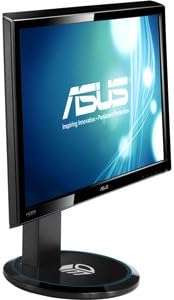
Immaġni: Ġenb view of the ASUS VG23AH monitor, illustrating its design and the location of control buttons on the bezel.
3. Karatteristiċi tal-Awdjo
The monitor includes built-in 3W stereo speakers. Audio can be received via HDMI (digital) or through the 3.5mm audio input jack (analog).
Manutenzjoni
1. Tindif tal-Monitor
- Dejjem itfi l-monitor u aqla’ l-korda tal-enerġija qabel ma tnaddaf.
- Uża drapp ratba u mingħajr ħelu ftit dampMaħsul bl-ilma jew b'tindif tal-iskrin ħafif u mhux abrażiv.
- Tisprejjax it-tindif direttament fuq l-iskrin. Applikah fuq id-drapp l-ewwel.
- Evita li tuża kimiċi ħarxa, solventi, jew materjali li joborxu, għax dawn jistgħu jagħmlu ħsara lill-iskrin jew lill-apparat.asing.
2. Kura Ġenerali
- Żomm il-monitor 'il bogħod mix-xemx diretta, mis-sħana eċċessiva, u mill-umdità.
- Kun żgur li jkun hemm ventilazzjoni adegwata madwar il-monitor biex tevita li jisħon iżżejjed.
- Evita li tpoġġi oġġetti tqal fuq il-monitor jew il-kejbils tiegħu.
- If moving the monitor, disassemble the stand and pack it in its original packaging for protection.
Issolvi l-problemi
Jekk tiltaqa' ma' problemi bil-monitor tiegħek, irreferi għall-problemi u s-soluzzjonijiet komuni li ġejjin:
| Problema | Soluzzjoni Possibbli |
|---|---|
| L-ebda immaġni fuq l-iskrin |
|
| L-immaġni hija mċajpra jew distorta |
|
| 3D effect is not working or appears incorrect |
|
| L-ebda awdjo mill-ispikers |
|
Speċifikazzjonijiet
Key technical specifications for the ASUS VG23AH monitor:
| Karatteristika | Speċifikazzjoni |
|---|---|
| Daqs tal-Iskrin | 23 Pulzier |
| Tip ta' Panel | IPS LED |
| Riżoluzzjoni Nattiva | 1920 x 1080 (Full HD 1080p) |
| Proporzjon ta' l-aspett | 1.33:1 |
| ViewIng Angolu | 178° Ultra-wide |
| Teknoloġija 3D | Passive 3D, ASUS All-in 3D Technology |
| Konnettività | Dual HDMI 1.4, Single-link DVI, D-sub |
| Kelliema Inkorporati | Kelliema Stereo 3W |
| Dimensjonijiet tal-Prodott (LxWxH) | 24.61 x 9.14 x 19.02 pulzieri |
| Piż tal-oġġett | 13 liri |
| Manifattur | ASUS Computer International Direct |
Informazzjoni dwar Garanzija
Il-prodotti tal-ASUS huma manifatturati skont l-ogħla standards ta’ kwalità. Għal termini u kundizzjonijiet dettaljati tal-garanzija, jekk jogħġbok irreferi għall-karta tal-garanzija inkluża mal-prodott tiegħek jew żur is-sit uffiċjali tal-appoġġ tal-ASUS. website. Keep your proof of purchase for warranty service.
Appoġġ
For further assistance, technical support, or service inquiries, please visit the official ASUS support website or contact ASUS customer service. You can find contact information and frequently asked questions on the ASUS support portal.
Appoġġ ASUS Websit: www.asus.com/support/