
1. Introduzzjoni
This manual provides instructions for the installation, operation, maintenance, and troubleshooting of the TP-Link TL-WDR4300 N750 Wireless Dual Band Gigabit Router. The TL-WDR4300 is designed to provide high-speed wireless connectivity across both 2.4 GHz and 5 GHz bands, offering a combined bandwidth of up to 750 Mbps. It features Gigabit Ethernet ports and USB 2.0 ports for versatile network capabilities.
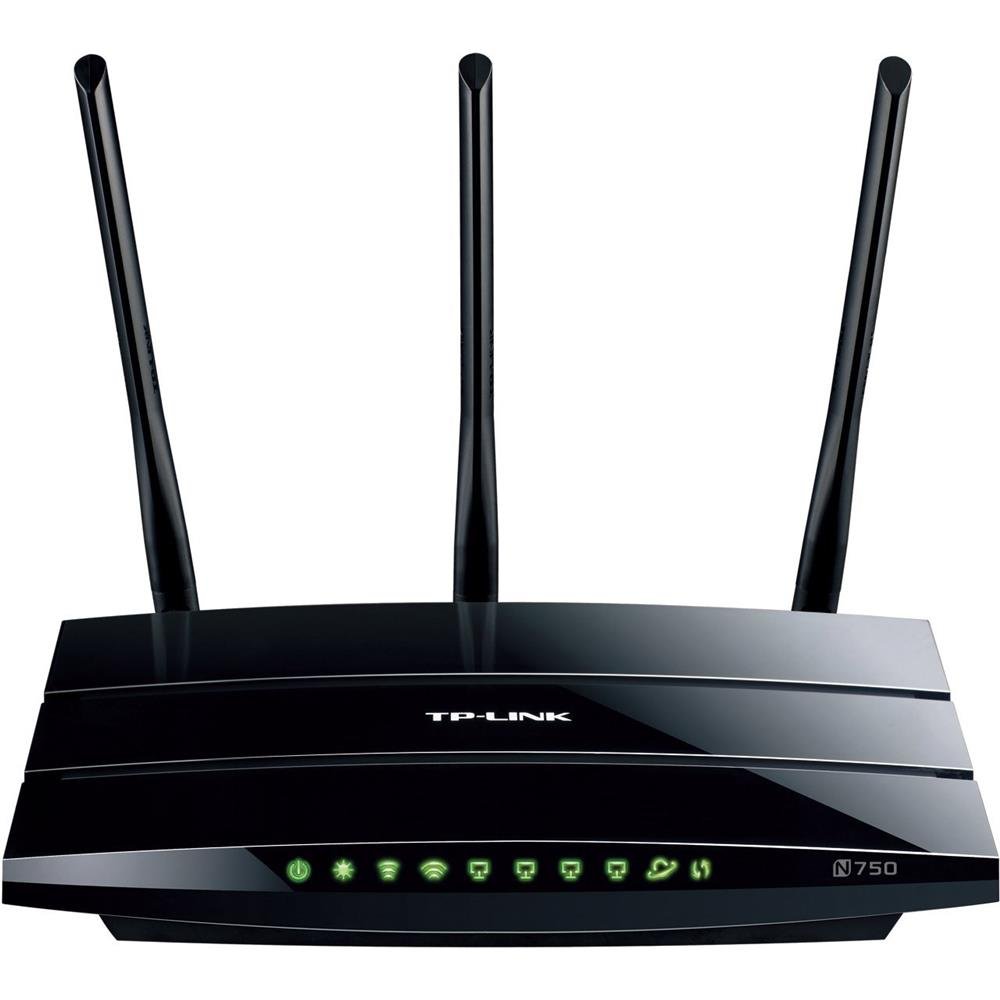
Figura 1: TP-Link TL-WDR4300 N750 Wireless Dual Band Gigabit Router. This image shows the top-down view of the black router with three detachable antennas and front-facing LED indicators.
2. Setup
2.1 Kontenut tal-Pakkett
- TP-Link TL-WDR4300 Router
- Adapter tal-Enerġija
- Cable Ethernet
- Gwida ta 'Installazzjoni Mgħaġġla
- CD tar-Riżorsi
2.2 Konnessjoni Fiżika
- Itfi: Skonnettja l-provvista tal-enerġija mill-modem u r-router tiegħek (jekk applikabbli).
- Qabbad l-antenni: Screw the three detachable antennas onto the corresponding connectors on the rear panel of the router.
- Qabbad il-Modem: Connect an Ethernet cable from your modem's Ethernet port to the blue WAN port on the TL-WDR4300 router.
- Qabbad Apparat: Connect your computer or other wired devices to any of the four yellow LAN ports using Ethernet cables.
- Qawwa Mixgħul: Connect the power adapter to the router's power jack and plug it into a power outlet. Power on your modem, then the router. Wait for the LED indicators to stabilize.
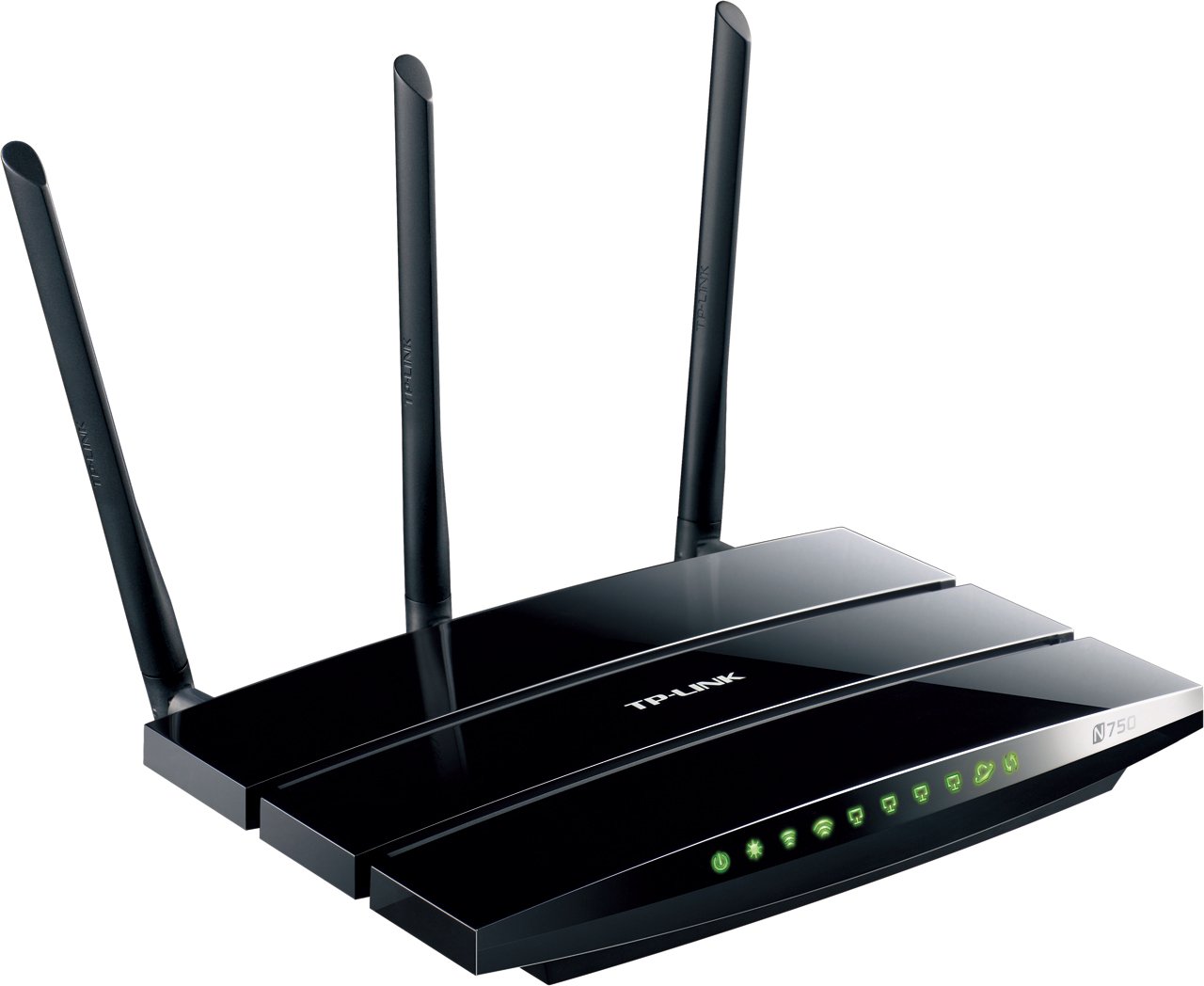
Figura 2: Rear panel connections. This image displays the rear of the router, showing the power input, WAN port (blue), four LAN ports (yellow), two USB 2.0 ports, and the three antenna connectors.
2.3 Konfigurazzjoni Inizjali (Web interface)
- Router tal-Aċċess: Iftaħ a web browser on a connected computer. In the address bar, type http://tplinkwifi.net or http://192.168.0.1 (jew http://192.168.1.1) u agħfas Enter.
- Idħol: Enter the default username and password, which are typically admin for both. If prompted, change the default password for security.
- Mexxi s-Setup Mgħaġġel: Follow the on-screen instructions of the Quick Setup Wizard to configure your internet connection type and basic wireless settings.
2.4 Konfigurazzjoni tan-Netwerk Wireless
The TL-WDR4300 operates on two frequency bands:
- Banda ta' 2.4 GHz: Provides wider coverage and is suitable for general internet use.
- Banda ta' 5 GHz: Offers higher speeds and less interference, ideal for online gaming and HD video streaming.
During the Quick Setup, you will set up separate SSIDs (network names) and passwords for each band. Ensure you use strong, unique passwords for both.
2.5 WPS (Wi-Fi Protetta Setup)
To quickly connect WPS-compatible devices without entering a password:
- Press the WPS button on the router (usually located on the rear or side panel).
- Within two minutes, press the WPS button on your client device.
- The device will automatically connect to the wireless network.
2.6 Netwerk Mistieden
The Guest Network feature provides secure Wi-Fi access for guests without sharing your main network's password or resources. This can be configured via the router's web interface under the "Guest Network" settings.
3. Operazzjoni
3.1 Dual Band Wireless Functionality
The TL-WDR4300 operates simultaneously on both 2.4 GHz and 5 GHz wireless bands. This allows for flexible network management:
- Uża l- Faxxa 2.4 GHz for devices that require wider range or are older, such as smartphones, tablets, and general web browsing.
- Uża l- Faxxa 5 GHz for bandwidth-intensive applications like HD video streaming, online gaming, and large file transfers, which benefit from higher speeds and reduced interference.
3.2 USB Sharing Ports
The router is equipped with two USB 2.0 ports, enabling various sharing functionalities:
- Kondiviżjoni tal-Printer: Connect a USB printer to the router to make it accessible to all connected devices on your network.
- File Qsim: Attach a USB storage device (flash drive or external hard drive) to share files and media across your local network or remotely via an FTP server.
- Media Server: Configure the router as a media server to stream content from a connected USB storage device to compatible devices (e.g., smart TVs, media players) on your network.
3.3 Portijiet Gigabit Ethernet
The TL-WDR4300 features one Gigabit WAN port and four Gigabit LAN ports. These ports provide high-speed wired connections, which are essential for:
- Connecting desktop computers, gaming consoles, and network-attached storage (NAS) devices.
- Ensuring optimal performance for latency-sensitive applications like online gaming and large data transfers.
3.4 IP QoS (Quality of Service)
IP QoS allows you to manage and prioritize bandwidth for specific devices or applications. This ensures that critical applications receive sufficient bandwidth, preventing network congestion and maintaining performance for all users. Configuration is available in the router's web interface.
3.5 Kontrolli tal-Ġenituri
The Parental Controls feature enables you to restrict access to certain websites or limit internet usage times for specific devices on your network. This helps in managing internet access for children or employees. Settings are accessible through the router's web paġna tal-ġestjoni.
4. Manutenzjoni
4.1 Aġġornamenti tal-Firmware
Regularly check for and install firmware updates from the official TP-Link website. Firmware updates can improve performance, add new features, and address security vulnerabilities. Always follow the instructions provided with the firmware update carefully to avoid damaging the device.
- Download the latest firmware for your specific model (TL-WDR4300) from the TP-Link support websit.
- Aċċessa r-router web interface.
- Innaviga lejn it-taqsima "Għodod tas-Sistemi" jew "Aġġornament tal-Firmware".
- Tella l-firmware mniżżel file and follow the prompts. Do not power off the router during the upgrade process.
4.2 Irrisettja l-Fabbrika
A factory reset restores the router to its default settings. This can be useful for troubleshooting persistent issues or when reconfiguring the router. There are two methods:
- Irrisettja l-Hardware: With the router powered on, press and hold the Reset button (usually a small pinhole button on the rear panel) for approximately 10 seconds until the system LED flashes rapidly. Release the button and wait for the router to restart.
- Irrisettja s-Software: Idħol fir-router web interface, navigate to "System Tools" > "Factory Defaults," and click "Restore."
Note: Performing a factory reset will erase all custom configurations, including Wi-Fi settings and passwords.
4.3 Tindif Fiżiku
Żomm ir-router nadif u ħieles mit-trab biex tiżgura ventilazzjoni xierqa u tevita li jisħon iżżejjed. Uża drapp artab u niexef biex timsaħ il-barra. Tużax prodotti tat-tindif likwidi jew materjali li joborxu.
5 Issolvi l-problemi
5.1 Ebda Aċċess għall-Internet
- Iċċekkja l-Konnessjonijiet: Ensure all Ethernet cables are securely connected, especially the one from your modem to the router's WAN port.
- Status tal-Modem: Ivverifika li l-modem tiegħek qed jaħdem sew u għandu konnessjoni tal-internet attiva.
- LEDs tar-router: Iċċekkja l-LED tal-WAN fuq ir-router. Jekk ikun mitfi jew aħmar, jista' jkun hemm problema bil-konnessjoni tal-internet mill-ISP jew il-modem tiegħek.
- Ribootja mill-ġdid: Power cycle your modem and router (unplug, wait 30 seconds, plug back in modem first, then router).
- Klonazzjoni tal-Indirizz MAC: Xi ISPs jeħtieġu l-ikklonjar tal-indirizz MAC. Aċċessa r-router web l-interfaċċja u ċċekkja s-settings tal-WAN għal din l-għażla.
5.2 Slow Wireless Speed
- Għażla tal-Banda: Ensure devices requiring high speed are connected to the 5 GHz network.
- Interferenza: Move the router away from devices that emit radio frequency interference (e.g., cordless phones, microwaves, Bluetooth devices).
- Ottimizzazzjoni tal-Kanal: In the router's wireless settings, try changing the wireless channel for both 2.4 GHz and 5 GHz bands to a less congested one.
- Pożizzjonament tar-Router: Position the router in a central location, away from obstructions, and elevate it if possible.
- Firmware: Kun żgur li l-firmware tar-router huwa aġġornat.
5.3 Ma nistax nikkonnettja mal-Wi-Fi
- Check Password: Verify that you are entering the correct Wi-Fi password (WPA/WPA2-PSK key).
- Xandira SSID: Ensure the SSID (network name) is being broadcast. If hidden, manually enter the SSID.
- WPS: Try connecting using the WPS button if your device supports it.
- Tip ta' Sigurtà: Confirm that your device supports the security type configured on the router (e.g., WPA2-PSK).
- Irrisettjar tal-Fabbrika: If all else fails, perform a factory reset and reconfigure the router.
6. Speċifikazzjonijiet
| Karatteristika | Dettall |
|---|---|
| Brand | TP-Link |
| Mudell | TL-WDR4300 |
| Standards bla fili | IEEE 802.11a / b / g / n |
| Frekwenza | 2.4 GHz u 5 GHz (Dual-Band) |
| Rata ta' Trasferiment tad-Data | Up to 750 Mbps (300 Mbps at 2.4 GHz, 450 Mbps at 5 GHz) |
| Portijiet Ethernet | 1x Gigabit WAN, 4x Gigabit LAN |
| Portijiet USB | 2x USB 2.0 Portijiet |
| Antenni | 3x Detachable Dual Band Antennas |
| Dimensjonijiet (L x W x H) | 24.3 x 16.06 x 3.25 ċm |
| Piż tal-oġġett | 213 g |
| Voltage | 12 Volts (DC) |
7. Garanzija u Appoġġ
7.1 Informazzjoni dwar Garanzija
TP-Link products are covered by a limited warranty. The specific terms and duration of the warranty may vary by region and product. Please refer to the warranty card included with your product or visit the official TP-Link webis-sit għal informazzjoni dettaljata dwar il-garanzija applikabbli għax-xiri tiegħek.
7.2 Appoġġ Tekniku
For technical assistance, product registration, or to download the latest drivers and firmware, please visit the official TP-Link support websit:
You may also find answers to common questions and troubleshooting tips in the FAQ section of the support websit.