
Introduzzjoni
The Avaya BM32 Button Module is an expansion unit designed to enhance the functionality of your Avaya 1616 or 1616-I IP phone. It provides 32 additional programmable line and feature buttons, allowing for increased call handling capacity and quick access to frequently used features. This manual provides essential information for the proper setup, operation, and maintenance of your BM32 Button Module.
Informazzjoni dwar is-Sigurtà
- Aqra l-istruzzjonijiet kollha bir-reqqa qabel l-użu.
- Tesponix l-apparat għal umdità jew temperaturi estremi.
- Use only with compatible Avaya 1616/1616-I IP phones.
- Tippruvax tiftaħ jew issewwi l-apparat int stess. Irreferi għal kull manutenzjoni f'idejn persunal kwalifikat.
- Żomm fejn ma jintlaħaqx mit-tfal.
Kontenut tal-Pakkett
Ivverifika li l-pakkett tiegħek fih l-oġġetti li ġejjin:
- Avaya BM32 Button Module (Model 700415573)
- Connecting cable (usually integrated or supplied with the phone)
- Dokumentazzjoni (dan il-manwal)
Setup
The Avaya BM32 Button Module is designed for easy integration with compatible Avaya IP phones. Follow these steps for proper installation.
Kompatibilità
The BM32 Button Module is compatible with:
- Avaya 1616 IP Phone
- Avaya 1616-I IP Phone
- Avaya IP Office R4.2 or higher
- Avaya Communication Manager R3.0 or higher
Up to three BM32 button modules can be connected to a single 1616 or 1616-I IP phone.
Connecting the Button Module
- Ensure your Avaya 1616 or 1616-I IP phone is powered off.
- Locate the expansion port on the back or side of your IP phone.
- Connect the provided cable from the BM32 Button Module to the expansion port on the IP phone. Ensure the connection is secure.
- If connecting multiple BM32 modules, connect them in a daisy-chain fashion, connecting the first module to the phone, the second to the first, and so on.
- Power on your Avaya IP phone. The BM32 module does not require an additional power supply; power is drawn directly from the connected 1616/1616-I telephone, which is powered either via Power over Ethernet (PoE) or a 5V external power supply.
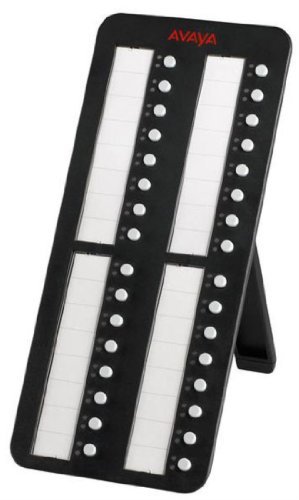
Image: Avaya BM32 Button Module connected to an Avaya IP phone. This image illustrates the physical connection of the BM32 module to the main IP phone unit, highlighting its side profile u stand integrat.
Operating the BM32 Button Module
The BM32 Button Module provides 32 additional buttons, each with dual LEDs, to extend the functionality of your Avaya 1616/1616-I IP phone.
Buttuni programmabbli
Each of the 32 buttons can be programmed to perform various functions, such as:
- Dehra tal-Linja: Assign additional incoming or outgoing lines.
- Feature Buttons: Quick access to phone features like call transfer, conference, hold, or voicemail.
- Speed Dial: Ipprogramma numri li ċċempel ta' spiss għal dialjar b'mess wieħed.
- Bridged Line Appearances (BLA): Monitor and answer calls for other extensions.

Immaġni: Quddiem view of the Avaya BM32 Button Module. This image displays the 32 programmable buttons, each accompanied by dual LEDs, which indicate the status of the assigned line or feature.
Dual LEDs
Each button is equipped with dual LEDs (typically red and green) that provide visual status indicators:
- LED aħdar: Indicates an active line, an available line, or a feature that is currently enabled.
- LED aħmar: Indicates a line on hold, a busy line, or a feature that is currently in use or unavailable.
- LED li jteptep: May indicate an incoming call, a held call, or a waiting message, depending on system configuration.
Konfigurazzjoni tal-buttuna
The programming of the BM32 buttons is typically managed through your Avaya IP Office or Communication Manager system by your system administrator. Consult your system administrator for specific instructions on how to program or reconfigure the buttons to suit your needs.
Manutenzjoni
Proper maintenance ensures the longevity and optimal performance of your BM32 Button Module.
Tindif
- Disconnect the module from the IP phone before cleaning.
- Uża drapp artab, niexef u mingħajr suf biex timsaħ l-uċuħ ta’ barra.
- Għal marki iebsa, ħassar bil-modampen the cloth with water or a mild, non-abrasive cleaner. Avoid spraying liquids directly onto the device.
- Do not use harsh chemicals, solvents, or abrasive materials, as these can damage the finish and internal components.
Ħażna
If storing the module for an extended period, keep it in a cool, dry place, away from direct sunlight and extreme temperatures. It is recommended to store it in its original packaging to protect it from dust and physical damage.
Issolvi l-problemi
If you encounter issues with your BM32 Button Module, try the following troubleshooting steps:
Module Not Powering On / No LED Activity
- Iċċekkja l-Konnessjoni: Ensure the connecting cable between the BM32 module and the IP phone is securely plugged in at both ends.
- Check IP Phone Power: Verify that the Avaya 1616/1616-I IP phone itself is powered on and functioning correctly. The BM32 draws power from the IP phone.
- Reboot IP Phone: Power cycle the connected IP phone (unplug and replug its power source or PoE connection).
- Kompatibilità: Confirm that your IP phone model and system software version meet the compatibility requirements (Avaya 1616/1616-I, IP Office R4.2+, Communication Manager R3.0+).
Buttons Not Responding / Incorrect Functionality
- Konfigurazzjoni Sistema: The buttons require programming by your system administrator. Contact your administrator to ensure the buttons are correctly configured for your desired functions.
- Reboot IP Phone: A power cycle of the IP phone can sometimes resolve minor communication issues.
- Iċċekkja għal Ħsara Fiżika: Inspect the buttons for any visible damage or obstructions.
If these steps do not resolve the issue, contact your system administrator or Avaya support for further assistance.
Speċifikazzjonijiet
| Karatteristika | Deskrizzjoni |
|---|---|
| Numru tal-Mudell | 700415573 |
| Buttuni | 32 programmable line/feature buttons |
| LEDs | Dual LEDs per button (red/green) |
| Kompatibilità | Avaya 1616/1616-I IP Phones, IP Office R4.2+, Communication Manager R3.0+ |
| Max Modules per Phone | Sa 3 |
| Qawwa | Powered by host IP phone (no separate power supply required) |
| Dimensjonijiet tal-Prodott | 10 x 10 x 6 pulzieri |
| Piż tal-oġġett | 1.1 Liri |
| Manifattur | Avaya |
Garanzija u Appoġġ
For warranty information, please refer to the documentation provided with your original Avaya IP phone or contact your Avaya reseller or system administrator. Avaya provides support resources through its official website and authorized service partners.
For technical assistance or further inquiries, please contact your Avaya system administrator or visit the official Avaya support portal.