
1. Introduzzjoni
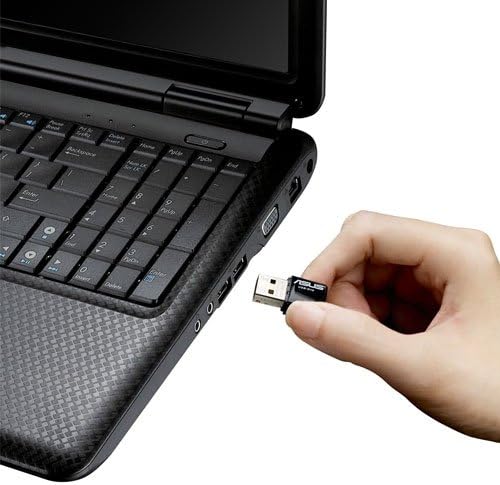
The ASUS USB-N10 Wireless-N USB Adapter provides a convenient solution for adding or upgrading wireless connectivity to your computer. This compact adapter supports IEEE 802.11b/g/n standards, offering wireless data rates of up to 150Mbps for both transmit and receive functions. It features a fast USB 2.0 interface and includes software-based WPS (Wi-Fi Protected Setup) button support for easy and secure network connections.
2. Karatteristiċi ewlenin
- Excellent Connection: Strong and convenient USB connection for fast downloads, rapid file transfers, and low-latency media streaming.
- PSP Xlink Kai Support: Play system games with PSP users worldwide via the internet.
- EZ WPS: Improve Wi-Fi security with easy WPS Wizard.
- Appoġġ tas-Sistema Operattiva: Compatible with Windows 7 and Mac 10.6 Operating Systems (and newer versions).
- Standards: IEEE 802.11b, IEEE 802.11g, IEEE 802.11n.
- Interface tal-Ospitanti: USB 2.0.
- Frekwenza tat-Tħaddim: 2.4 - 2.5 GHz.
- Antenna: 2x Internal Antenna (MIFA antenna on USB connector).
- Modi Operattivi: 11 for N. America, 14 Japan, 13 Europe (ETSI).
- Modulazzjoni: OFDM - BPSK, QPSK, 16-QAM, 64-QAM, DBPSK, DQPSK, CCK.
- Firxa: Sa 150m.
- Rata tad-Data: 802.11n: Tx - 150Mbps (Max); Rx - 150Mbps (Max), 802.11g: 6, 9, 12, 18, 24, 36, 48, 54Mbps, 802.11b: 1, 2, 5.5, 11Mbps.
- Wireless Setting: Diagnose and configure your wireless network settings with on-line troubleshooting feature.
- WPS Wizard: High-speed wireless network is just a few clicks away.
- Sensittività tar-riċevitur: -84 dBm @11 Mbps, -70 dBm @54 Mbps, -67 dBm @64-QAM, 20MHz channel spacing, -64 dBm @64-QAM, 40MHz channel spacing.
3. Kontenut tal-Pakkett
The ASUS USB-N10 Wireless-N USB Adapter package typically includes:
- ASUS USB-N10 Wireless-N USB Adapter
- Gwida ta' Bidu Mgħaġġel / Manwal ta' Istruzzjonijiet
- Driver CD or USB Drive (containing necessary software)
4. Setup u Installazzjoni
Follow these steps to install your ASUS USB-N10 Wireless-N USB Adapter:
- Daħħal l-Adapter: Carefully plug the ASUS USB-N10 adapter into an available USB 2.0 port on your computer. For optimal performance, especially if your computer has USB 3.0 ports, consider using one of those, though the adapter itself is USB 2.0.
- Installa Sewwieqa:
- Insert the provided driver CD or USB drive into your computer.
- Locate and double-click the 'Setup.exe' file.
- Follow the on-screen instructions to complete the Wi-Fi driver installation. It is recommended to use the manufacturer's drivers for best compatibility and performance.
- Qabbad ma' Netwerk Wi-Fi:
- Once the drivers are installed, click on the network icon in your system tray (usually in the bottom-right corner of your screen on Windows, or top-right on Mac).
- Agħżel in-netwerk Wi-Fi mixtieq tiegħek mil-lista ta' netwerks disponibbli.
- Daħħal iċ-ċavetta tas-sigurtà tan-netwerk (password) jekk tintalab.
- Click 'Connect'. Your computer should now be connected to the Wi-Fi network.

5. Tħaddim tal-Adapter
Once installed and connected, the ASUS USB-N10 adapter operates seamlessly in the background, providing wireless internet access. You can manage your wireless connection through your operating system's network settings.
5.1. L-użu tal-WPS (Wi-Fi Protected Setup)
The adapter supports WPS for quick and secure connection to compatible routers. If your router has a WPS button:
- Agħfas il-buttuna WPS fuq ir-router mingħajr fili tiegħek.
- Within two minutes, activate the WPS function on your computer. This is typically done through the ASUS utility software installed with the drivers, or via your operating system's network settings.
- The adapter will automatically connect to the router securely.
6. Manutenzjoni u Kura
- Żomm Nadif: Gently wipe the adapter with a soft, dry cloth to remove dust. Avoid using liquid cleaners.
- Evita Ħsara Fiżika: Handle the adapter with care. Avoid dropping it or exposing it to excessive force, which could damage the USB connector or internal components.
- Poġġiment ottimali: For best signal strength, ensure the adapter is not obstructed by other objects or placed in an area with high electromagnetic interference.
- Aġġornamenti tas-sewwieq: Iċċekkja l-appoġġ tal-ASUS perjodikament website for updated drivers to ensure optimal performance and compatibility with the latest operating system versions.
7 Issolvi l-problemi
7.1. Ebda Konnessjoni Wireless
- Iċċekkja l-Konnessjoni Fiżika: Ensure the USB-N10 adapter is securely plugged into a functioning USB port.
- Installazzjoni tas-sewwieq: Verify that the drivers were installed correctly. You can check this in your computer's Device Manager (Windows) or System Information (Mac). Reinstall drivers if necessary.
- Ippermetti l-Wi-Fi: Make sure your computer's Wi-Fi is enabled.
- Status tar-Router: Confirm that your wireless router is powered on and broadcasting a Wi-Fi signal.
7.2. Veloċità ta' Konnessjoni Baxxa
- Qawwa tas-Sinjal: Check the signal strength of your Wi-Fi network. Move closer to your wireless router or access point if the signal is weak.
- Interferenza: Other electronic devices (microwaves, cordless phones) can cause interference. Try to minimize these or move the adapter away from them.
- Port USB: Ensure the adapter is connected to a USB 2.0 port. While compatible with USB 1.1, performance will be significantly reduced.
- Settings tal-router: Ensure your router is configured for 802.11n mode for maximum speed.
7.3. Adapter Not Recognized
- Ipprova Port USB ieħor: Test the adapter in a different USB port on your computer.
- Ibda mill-ġdid il-Kompjuter: Sempliċi bidu mill-ġdid spiss jista' jsolvi problemi ta' rikonoxximent.
- Erġa' installa s-sewwieqa: Uninstall any existing drivers for the adapter, restart your computer, and then perform a clean installation of the drivers.
8. Speċifikazzjonijiet
| Attribut | Valur |
|---|---|
| Dimensjonijiet tal-Prodott | 0.67 x 1.18 x 0.35 pulzieri |
| Piż tal-oġġett | 2.4 uqija |
| Numru tal-Mudell tal-Oġġett | USB-N10 |
| Data L-Ewwel Disponibbli | 26 ta’ Marzu, 2010 |
| Manifattur | Asus |


9. Garanzija u Appoġġ
9.1. Ċaħda Legali
Actual data throughput and Wi-Fi coverage will vary from network conditions and environmental factors, including the volume of network traffic, building material and construction, and network overhead, resulting in lower actual data throughput and wireless coverage.
9.2. Appoġġ għall-Klijent
For technical support, warranty claims, or further assistance, please visit the official ASUS support website or contact their customer service. Refer to the product packaging or the ASUS webis-sit għall-aktar informazzjoni ta' kuntatt u dettalji tal-garanzija aġġornati.