
ASUS AiGuruSV1T
ASUS Skype Videophone Touch SV1TW User Manual
Model: AiGuruSV1T
Introduzzjoni
This manual provides comprehensive instructions for the setup, operation, maintenance, and troubleshooting of your ASUS Skype Videophone Touch SV1TW. Please read this manual thoroughly before using the device to ensure proper functionality and longevity.
Setup
Kontenut tal-Pakkett
- ASUS Skype Videophone Touch SV1TW
- Adapter AC
- Manwal għall-Utent (dan id-dokument)
Konnessjoni tal-Apparat
- Konnessjoni tal-Enerġija: Connect the provided AC adapter to the DC Jack on the rear of the videophone and then plug it into a power outlet.

Immaġni: Wara view of the ASUS Skype Videophone, highlighting the DC Jack, USB ports, RJ-45 Ethernet connector, and Audio I/O Jacks.
- Konnessjoni tan-Netwerk:
- Konnessjoni bil-fili: For a stable connection, connect an Ethernet cable from your router to the RJ-45 connector on the back of the videophone.
- Konnessjoni bla fili (Wi-Fi): The device supports 802.11 b/g Wireless LAN. Navigate to the network settings on the device's touch screen to connect to your Wi-Fi network. Note: Some users have reported challenges with Wi-Fi connectivity. A wired Ethernet connection is recommended for optimal stability.
- Qawwa Inizjali Mixgħula: Once connected to power, the device should power on automatically or can be turned on using the power button (location typically on the side or top).
Istruzzjonijiet Operattivi
Interface tal-Utent u Navigazzjoni
The ASUS Skype Videophone features a 7-inch (800x480) Touch Screen TFT LCD for primary interaction. It also includes physical buttons for navigation and call control.
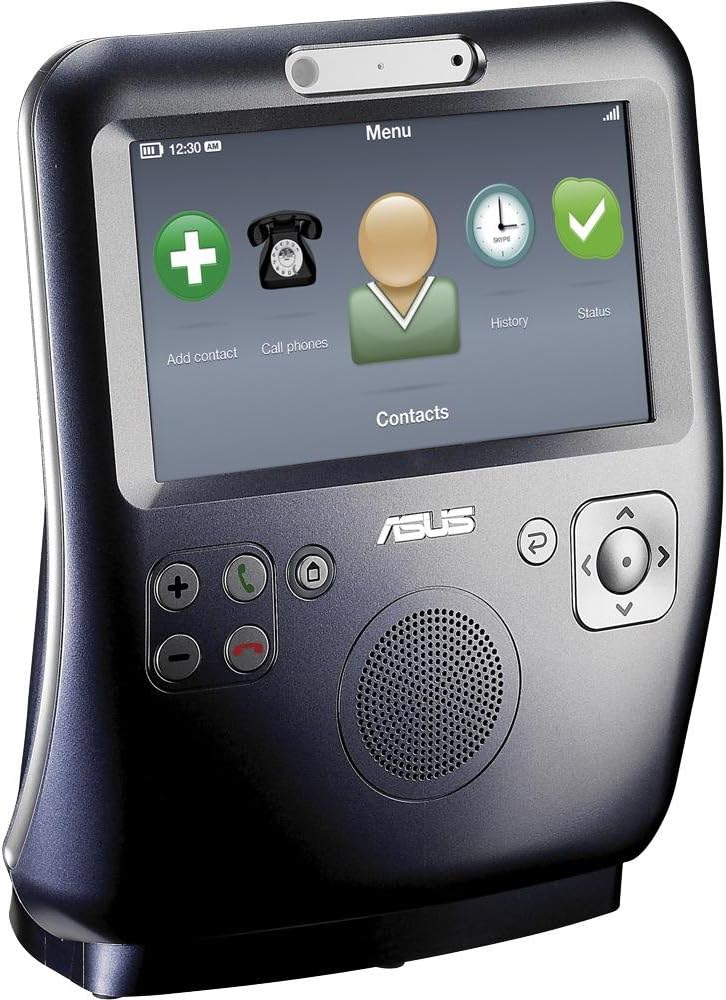
Immaġni: Quddiem view of the videophone displaying its main menu interface, including icons for adding contacts, making calls, viewing history, and checking status.
- Touch Screen: Tap icons and navigate menus directly on the screen.
- Buttuni Fiżiċi: Use the dedicated buttons for functions such as volume control, call answer/end, main menu access, back, and directional navigation.
Jagħmel u Jirċievi Sejħiet
- Żieda ta' Kuntatti: Use the "Add contact" option on the main screen to add new Skype contacts.
- Bidu ta' Sejħa: Select a contact from your list and choose the call option. For video calls, ensure the contact's Skype name is used.
- Tweġiba għal Sejħa: When an incoming call is received, the screen will activate. Press the green answer button or tap the corresponding icon on the screen.

Image: The videophone screen during an active video call, showing participants.
- Waqt Sejħa:
- Vidjow: The device supports video calls. Video quality may vary based on internet connection speed. You can typically enable or disable video during a call.
- Awdjo: The device has an integrated speaker and internal microphone. While audio is generally clear, some users have noted that microphone volume may fluctuate automatically.
- Tmiem Sejħa: Press the red end call button or tap the corresponding icon on the screen.
Ġestjoni tal-Enerġija
To conserve power, the screen will turn into a clock display after a period of inactivity and then turn off completely. It will reactivate upon an incoming call or touch. The device includes a small internal battery, providing approximately 20 minutes of portable use. For extended use, it is recommended to keep the device connected to the AC adapter.
Manutenzjoni
Tindif
To clean the device, gently wipe the screen and exterior surfaces with a soft, lint-free cloth. Do not use abrasive cleaners or solvents, as these can damage the finish.
Kura tal-batterija
The internal battery is designed for short-term portability. For optimal battery life and device performance, keep the unit connected to the AC adapter when not in portable use. If the battery does not hold a charge, it may require service.
Issolvi l-problemi
| Problema | Kawża / Soluzzjoni Possibbli |
|---|---|
| Kwistjonijiet ta 'konnessjoni Wi-Fi |
|
| Il-batterija ma żżommx ħlas |
|
| Video is unstable or not displaying |
|
| L-apparat jintefa b'mod mhux mistenni |
|
| AC adapter feels hot |
|
| Microphone volume issues |
|
Speċifikazzjonijiet
| Karatteristika | Dettall |
|---|---|
| Isem tal-Mudell | SV1TW |
| Numru tal-Mudell tal-Oġġett | AiGuruSV1T |
| Brand | ASUS |
| Dimensjonijiet tal-Prodott | 5.12 x 2.36 x 4.13 pulzieri |
| Piż tal-oġġett | 5.95 pounds (or 6 Pounds, as listed in another spec) |
| Daqs tal-Iskrin | 7 inches (800x480 TFT LCD) |
| Riżoluzzjoni | 800 x 480 |
| Teknoloġija tal-Konnettività | Wi-Fi (802.11 b/g), Fast Ethernet (RJ-45) |
| Portijiet | 1x USB Type A, 1x RJ-45, DC Jack, Audio I/O Jacks |
| Kulur | Silver/Blue (Silver Grey) |
| Manifattur | ASUS |
| Data L-Ewwel Disponibbli | 6 ta’ Awwissu, 2009 |
Garanzija u Appoġġ
For information regarding warranty coverage, terms, and conditions, please refer to the warranty card included with your product or contact ASUS customer support directly. Support contact details can typically be found on the official ASUS webis-sit jew permezz tal-punt tax-xiri tiegħek.
Ask a question about this manual
Ask about setup, troubleshooting, compatibility, parts, safety, or missing instructions. Manuals+ will review the question and use this page’s manual context to help answer it.