
1. Introduzzjoni
This manual provides instructions for the installation, operation, and maintenance of your StarTech.com SLIMDVDRW8U2 External Slim USB 2.0 DVD+/-RW Dual Layer Drive. This device allows you to read and write data to DVD and CD media using a standard USB 2.0 connection, offering portability and convenience for laptops and desktop PCs without an internal optical drive.
2. Kontenut tal-Pakkett
Ivverifika li l-pakkett tiegħek fih l-oġġetti li ġejjin:
- 1x StarTech.com SLIMDVDRW8U2 External Slim USB 2.0 DVD+/-RW Drive
- 1x USB 2.0 A to B Cable
- 1x Manwal ta 'Istruzzjoni
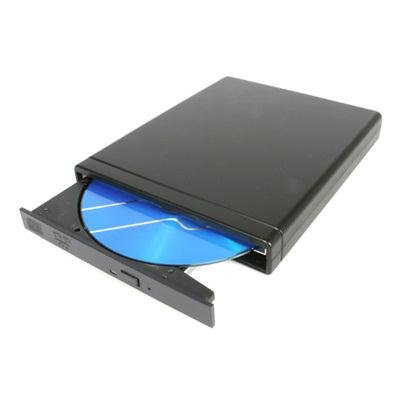
Image: The StarTech.com SLIMDVDRW8U2 external slim DVD+/-RW drive, shown with its sleek black casing and USB port.
3. Rekwiżiti tas-Sistema
Before installing the drive, ensure your system meets the following requirements:
- Available USB 2.0 port (or higher, compatible with USB 2.0)
- Operating System: Windows XP/Vista/7/8/10/11, macOS, or Linux (with USB mass storage device support)
- For DVD/CD burning, compatible burning software may be required (not included).
4. Setup
Follow these steps to connect and prepare your external DVD drive for use:
- Qabbad il-Cable USB: Plug the USB Type-B connector of the provided USB cable into the corresponding port on the external DVD drive.
- Qabbad mal-Kompjuter: Plug the USB Type-A connector of the cable into an available USB 2.0 port on your computer (laptop or desktop PC).
- Installazzjoni tas-sewwieq: The drive is plug-and-play. Your operating system should automatically detect and install the necessary drivers. This process may take a few moments.
- Verifika: Once drivers are installed, the drive will appear as an optical drive in "My Computer" (Windows) or "Finder" (macOS).
5. Istruzzjonijiet Operattivi
This section details how to use your external DVD drive for reading and writing optical media.
5.1. Daħħal Diska
- Ensure the drive is connected to your computer and powered on (indicated by an LED, if present).
- Press the eject button on the front of the drive. The disc tray will open.
- Carefully place a CD or DVD onto the tray, ensuring it is centered with the label side facing up.
- Gently push the tray back into the drive until it clicks shut. The drive will begin to read the disc.
5.2. It-Tneħħija ta' Diska
- Software Eject (Recommended): Right-click on the optical drive icon in "My Computer" (Windows) or drag the disc icon to the Trash (macOS) and select "Eject".
- Hardware Eject: Press the eject button on the front of the drive. If the disc is in use, the tray may not open. Ensure no applications are accessing the disc before using the hardware eject button.
5.3. Reading Data from a Disc
Once a disc is inserted and recognized by your operating system, you can access its contents. Double-click the drive icon to browse files, or use media player software to play audio CDs or video DVDs.
5.4. Writing Data to a Disc (Burning)
To write data to a blank CD-R/RW or DVD-R/RW disc, you will need compatible burning software. Many operating systems include basic burning capabilities, or you can use third-party software. Follow the instructions provided with your chosen burning software.
- Insert a blank, recordable disc (CD-R/RW, DVD-R/RW, DVD+R/RW, DVD+R DL).
- Open your burning software and select the type of project (data disc, audio CD, video DVD, etc.).
- Żid il- files or media you wish to burn to the disc.
- Initiate the burning process. Do not disconnect the drive or interrupt the process until completion.
6. Manutenzjoni
Proper care ensures the longevity and optimal performance of your drive.
- Tindif ta' barra: Use a soft, dry, lint-free cloth to wipe the exterior of the drive. Avoid abrasive cleaners or solvents.
- Tindif tal-Lenti: Do not attempt to clean the internal optical lens manually. Use a specialized CD/DVD lens cleaning disc if necessary.
- Immaniġġjar tad-Diska: Always handle discs by their edges. Avoid touching the data surface. Store discs in protective cases when not in use.
- Ħażna: Aħżen id-drajv f'post frisk u niexef 'il bogħod mix-xemx diretta u minn temperaturi estremi.
- Evita t-Trab: Keep the drive in a clean environment to prevent dust accumulation, which can affect performance.
7 Issolvi l-problemi
If you encounter issues with your external DVD drive, refer to the following common problems and solutions:
7.1. Id-Drajv Mhux Rikonoxxut mill-Kompjuter
- Iċċekkja l-Konnessjonijiet: Ensure the USB cable is securely connected to both the drive and your computer's USB port.
- Ipprova Port USB ieħor: Connect the drive to a different USB port on your computer.
- Ibda mill-ġdid il-Kompjuter: Sometimes a simple restart can resolve detection issues.
- Iċċekkja l-Maniġer tal-Apparat (Windows): Open Device Manager and look for "DVD/CD-ROM drives." If there's an exclamation mark, try updating or reinstalling the driver.
- Check System Information (macOS): Go to Apple Menu > About This Mac > System Report > USB. Check if the drive is listed.
7.2. Disc Read Errors or Slow Performance
- Diska Nadifa: Inspect the disc for scratches, smudges, or dirt. Gently clean it with a soft, lint-free cloth from the center outwards.
- Ipprova Diska Oħra: Test with a different, known-good disc to determine if the issue is with the drive or the disc itself.
- Tindif tal-Lenti: Use a specialized CD/DVD lens cleaning disc.
- Resource Usage: Agħlaq applikazzjonijiet oħra li jeħtieġu ħafna flus u li jistgħu jkunu qed jikkunsmaw riżorsi tas-sistema.
7.3. Disc Tray Does Not Open/Close
- Kontroll tal-Enerġija: Ensure the drive is properly connected and receiving power.
- Tneħħija tas-Softwer: Attempt to eject the disc through your operating system's software interface first.
- Tkeċċija Manwali: If the tray is stuck, locate the small emergency eject hole (often near the eject button). Insert a straightened paperclip into the hole and push gently to manually open the tray.
8. Speċifikazzjonijiet
| Karatteristika | Speċifikazzjoni |
|---|---|
| Numru tal-Mudell | SLIMDVDRW8U2 |
| Interface tal-Ħardwer | USB 2.0 |
| Veloċità tal-Kitba tal-Ħażna Ottika | 8x (DVD), 24x (CD) |
| Veloċità tal-Qari tal-Ħażna Ottika | 8x (DVD), 24x (CD) |
| Pjattaforma tal-Ħardwer | Laptop, PC |
| Apparati Kompatibbli | Most personal computers and laptops with a USB 2.0 port |
| Teknoloġija tal-Konnettività | USB |
| Fattur tal-Formola | Slim External |
| Piż tal-oġġett | 1.92 Libbra (madwar 0.87 kg) |
| Sors tal-Enerġija | Powered mill-USB |
9. Garanzija u Appoġġ Tekniku
StarTech.com provides a comprehensive warranty for its products. For specific warranty details, please refer to the warranty information included with your product or visit the official StarTech.com websit.
For technical support, troubleshooting assistance, or to download the latest drivers and manuals, please visit the StarTech.com support webis-sit jew ikkuntattja lid-dipartiment tas-servizz tal-konsumatur tagħhom. L-informazzjoni ta' kuntatt tipikament tista' tinstab fuq l-imballaġġ tal-prodott jew fuq l-uffiċjal websit.
Websit: www.startech.com/support